📚 Using Kobo with Booklore
Transform your Kobo eReader into a seamless extension of your Booklore library. Sync your books effortlessly and enjoy reading your collection anywhere.
🌟 What You'll Achieve
With Kobo integration, you can:
- Access your entire Booklore library on your Kobo eReader
- Sync books automatically between Booklore and your device
✨ Key Features & Capabilities
📖 Smart Shelf Management
- Dedicated Kobo Shelf: Each user gets a special Kobo shelf that automatically syncs with their device
- Two-Way Synchronization: Add/remove books in Booklore or on your Kobo - changes sync both ways
- Instant Updates: Book changes reflect immediately after syncing
📱 Device Integration
- Seamless Setup: One-time configuration connects your Kobo to Booklore
- Proxy Support: Access both your Booklore library and Kobo Store purchases
- Multiple Users: Each user has their own independent Kobo integration
📄 File Support
- EPUB Files: Full support for EPUB format books
- Quality Preservation: Books maintain their original formatting and metadata
- No PDF Support: PDF files are currently not supported for Kobo sync
⚙️ nginx Proxy Configuration
If you're using nginx as a reverse proxy in front of Booklore, the following configuration is required for Kobo sync to work properly:
# Required headers for Kobo sync
proxy_set_header Host $host;
proxy_set_header X-Real-IP $remote_addr;
proxy_set_header X-Forwarded-For $proxy_add_x_forwarded_for;
proxy_set_header X-Forwarded-Host $host;
proxy_set_header X-Forwarded-Proto $scheme;
proxy_set_header X-Forwarded-Port $server_port;

# Required buffer settings
proxy_buffer_size 128k;
proxy_buffers 4 256k;
proxy_busy_buffers_size 256k;
large_client_header_buffers 8 32k;
The proxy headers are already configured automatically in nginx Proxy Manager, but you'll still need to add the buffer settings manually as they are required for proper functionality.
If you're using Caddy, Traefik, or other reverse proxy solutions, you'll need to configure equivalent headers and buffer settings manually. Consult your proxy's documentation for the appropriate configuration.
🚀 Setup Overview
The setup process involves four main steps:
- 🛠️ Enable Kobo Sync - Get your API token from Booklore
- 📲 Configure Your Kobo - Update device settings to connect to Booklore
- 📥 Sync Your Books - Add books to your Kobo shelf and sync to device
- 🗑️ Manage Your Library - Add/remove books as needed
10-15 minutes for first-time setup.
🛠️ Step 1: Enable Kobo Sync in Booklore
Before you can sync books to your Kobo eReader, you need to obtain your unique API token from Booklore.
Getting Your API Token
-
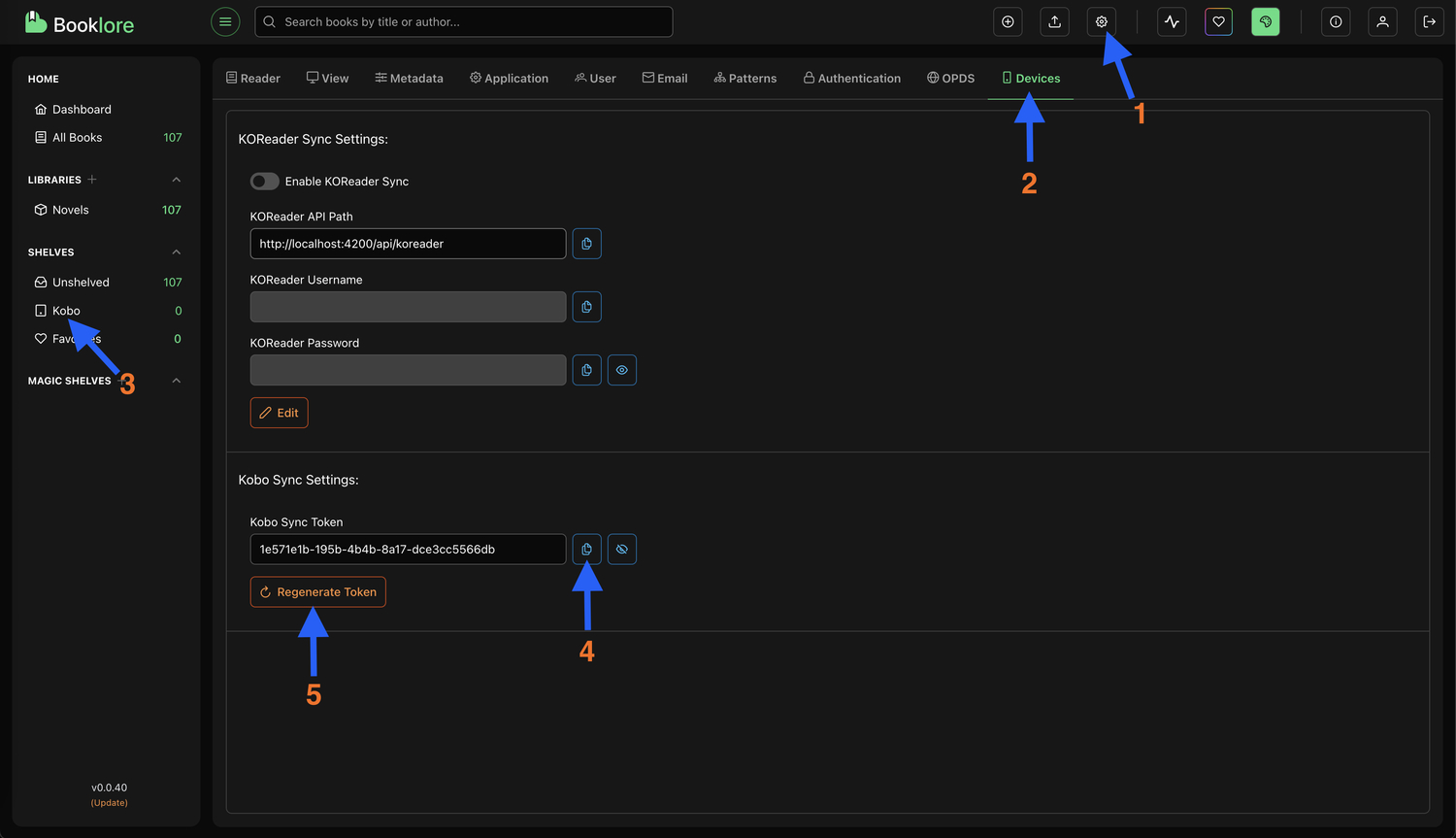
Access Device Settings:
- Navigate to Settings > Device in Booklore
- Locate the Kobo Sync Settings section
-
Copy Your Token:
- Click the Copy button to copy your unique API token
- Important: Treat this token like a password - keep it secure
-
Token Management:
- You can regenerate the token at any time if needed
- Regenerating will require updating your Kobo configuration
Kobo Sync is enabled by default for admin users. Other users may need this permission granted by an administrator.
📲 Step 2: Configure Your Kobo eReader
You'll need to modify your Kobo's configuration file to point it to your Booklore server instead of the Kobo store.
Accessing the Configuration File
-
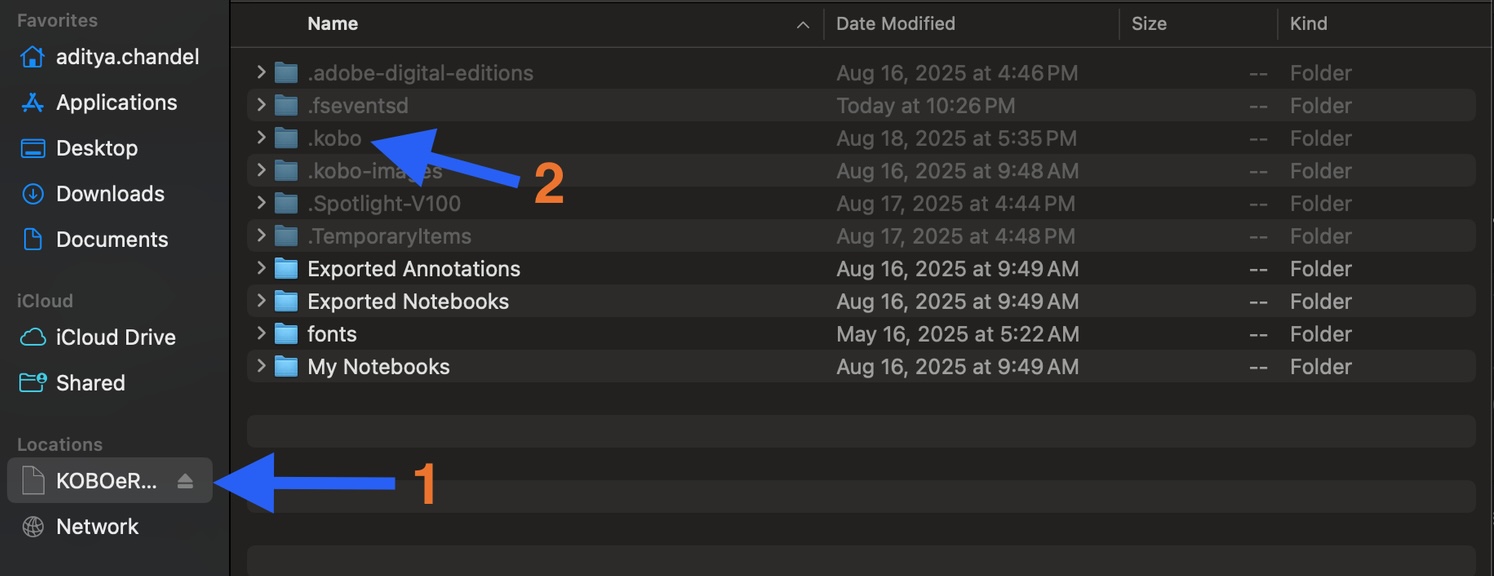
Connect Your Device:
- Connect your Kobo eReader to your computer via USB cable
- Wait for your computer to recognize the device
-
Navigate to Config File:
- Open the Kobo device in your file explorer
- Enable viewing hidden files in your file manager
- Navigate to
.kobo/Kobo/Kobo eReader.conf
-
Open the Configuration:
- Open
Kobo eReader.confin a text editor (Notepad, TextEdit, etc.)
- Open
Updating the API Endpoint
-
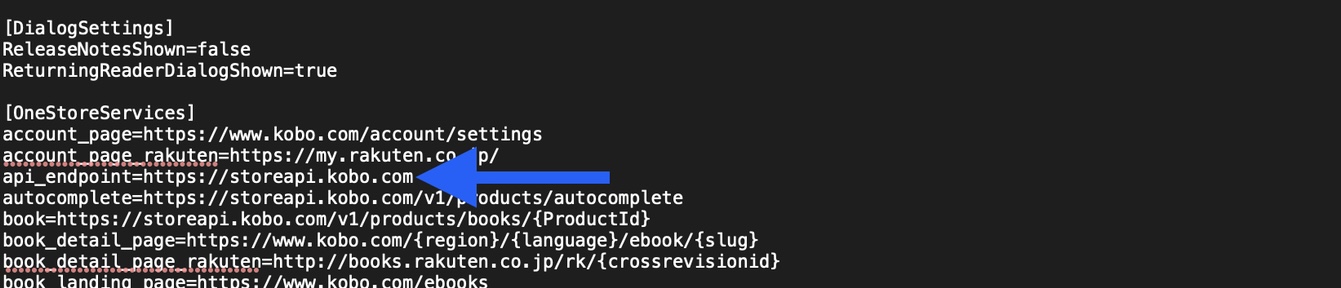
Locate the Section:
- Find the
[OneStoreServices]section in the file - And then look for the
api_endpointline - Update this line as described below
- Find the
-
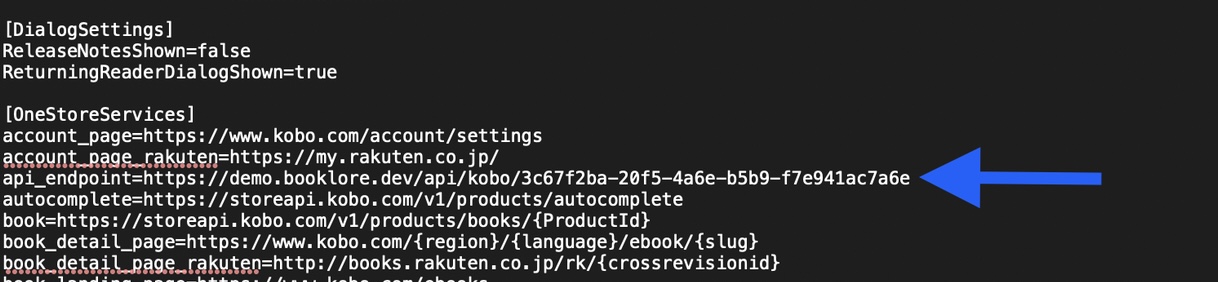
Update the Endpoint:
-
Before modification:
-
After modification:
-
Configuration Options
Choose the appropriate configuration based on your setup:
Option A: Local Network Setup
api_endpoint=http://<local-ip>:<port>/api/kobo/<your-token>
Example:
api_endpoint=http://192.168.1.100:6060/api/kobo/3c67f2ba-20f5-4a6e-b5b9-f7e941ac7a6e
Option B: Remote Server Setup (with reverse proxy)
api_endpoint=https://<your-domain>/api/kobo/<your-token>
Example:
api_endpoint=https://booklore.example.com/api/kobo/3c67f2ba-20f5-4a6e-b5b9-f7e941ac7a6e
Finalizing Setup
-
Save the File:
- Save the
Kobo eReader.conffile with your changes
- Save the
-
Safely Disconnect:
- Safely eject/unmount your Kobo device from your computer
- Disconnect the USB cable
Ensure your Booklore server is accessible from your Kobo's network location. Test connectivity before proceeding to the next step.
📥 Step 3: Syncing Books from Booklore to Kobo
Follow these steps to add books from your Booklore library to your Kobo eReader.
Adding Books to Your Kobo Shelf
-
Navigate to your library:
- Open Booklore and browse your book collection
-
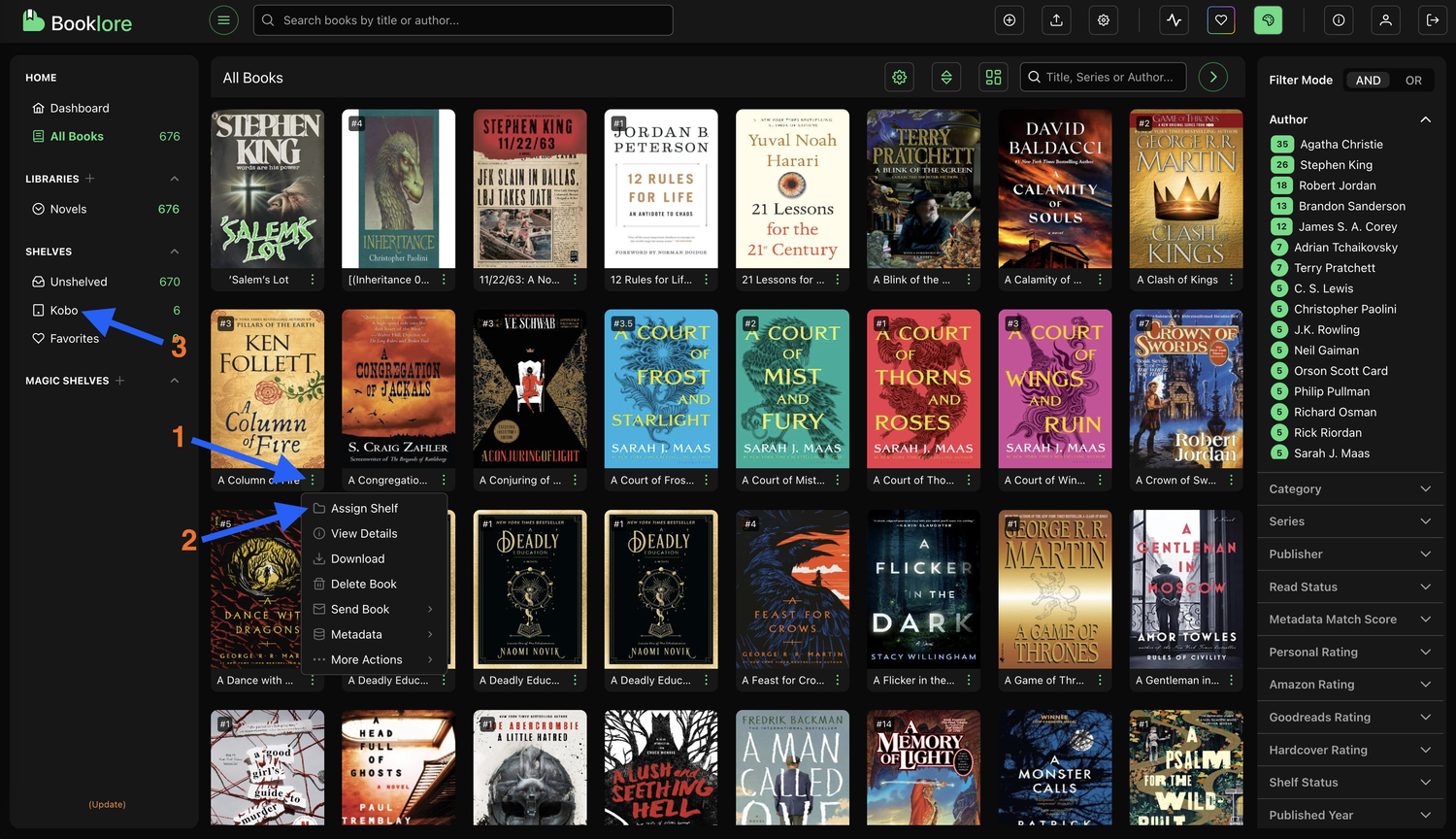
Add books to Kobo shelf:
- Click the menu icon (three dots) on any book card
- Select "Assign Shelf" from the context menu
- Choose your Kobo shelf from the list
- The book will be added to your Kobo shelf
-
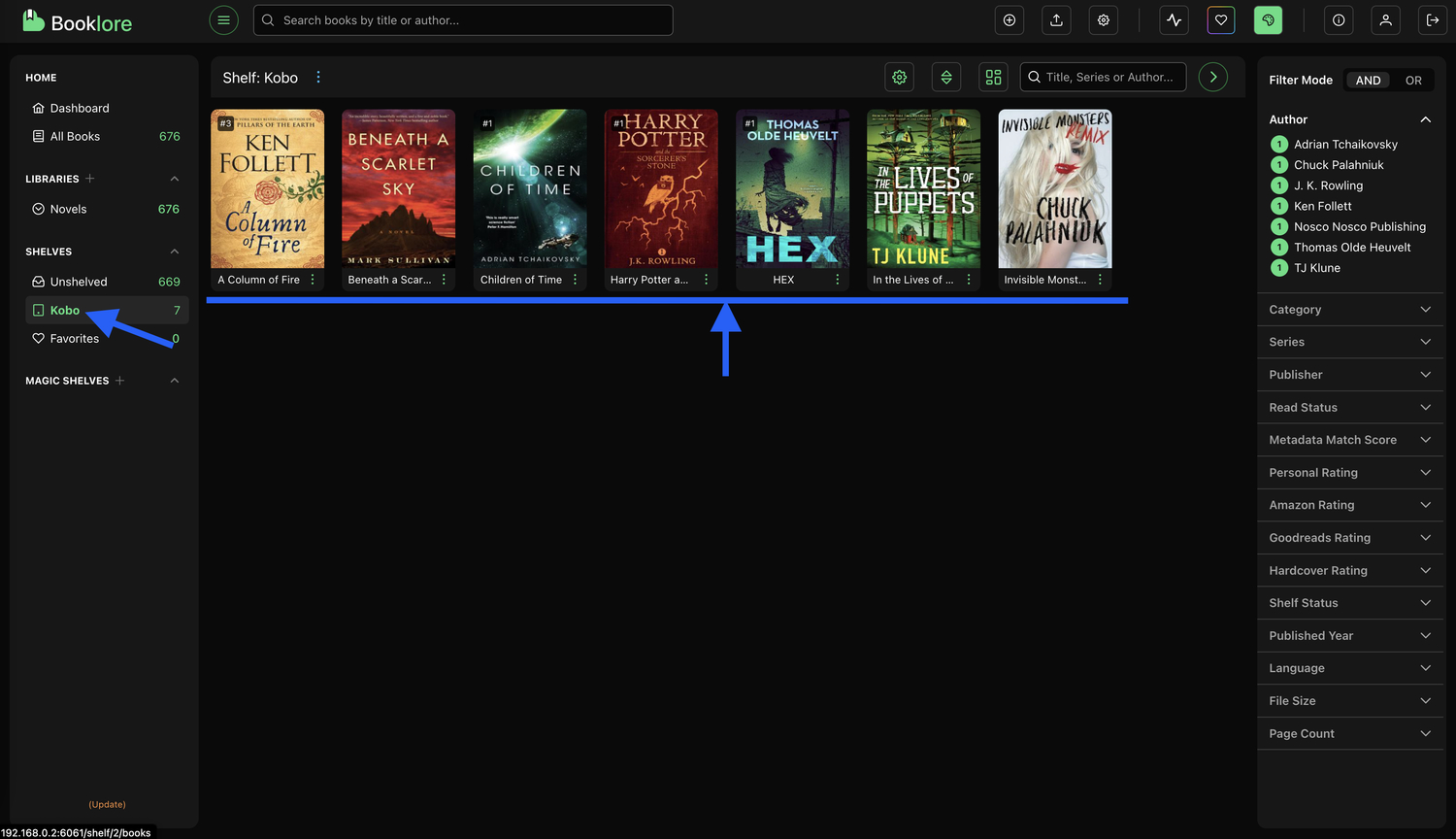
Verify books are added:
- Repeat for all books you want on your Kobo
- Your Kobo shelf will show all selected books before syncing
Syncing to Your Kobo Device
-
Access your Kobo eReader:
- Navigate to the "My Books" section on your device
-
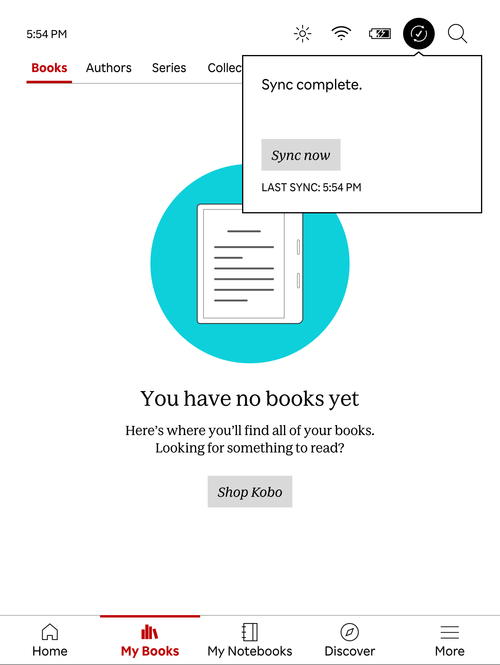
Initiate sync:
- Tap the sync icon at the top of the screen
- Tap "Sync sow"
-
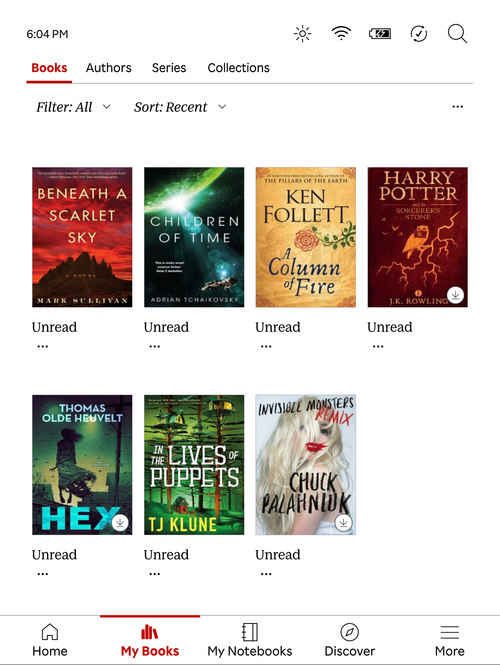
Verify sync completion:
- Wait for the sync process to complete
- Your Booklore books will now appear on your Kobo eReader
The sync process may take a few moments depending on the number of books and your internet connection speed.
🗑️ Step 4: Removing Books from Your Kobo
You can remove books from your Kobo device in two ways. When you remove a book, it's only removed from your Kobo shelf - it remains in your Booklore library.
Method 1: Remove via Kobo eReader
-
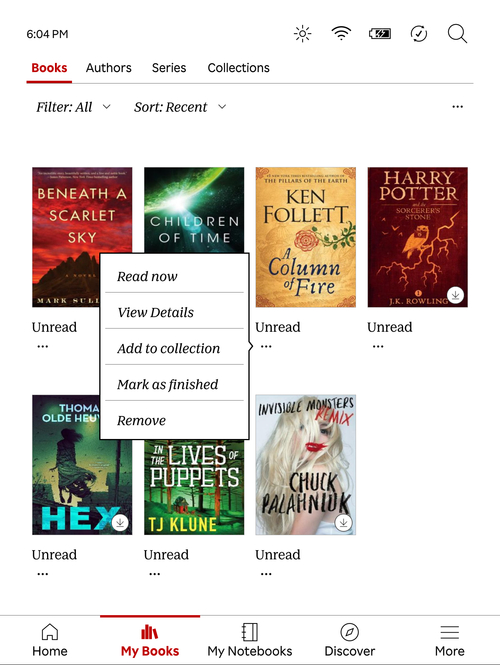
Remove the book from your device:
- Tap the three dots icon on the book cover
- Select "Remove"
-
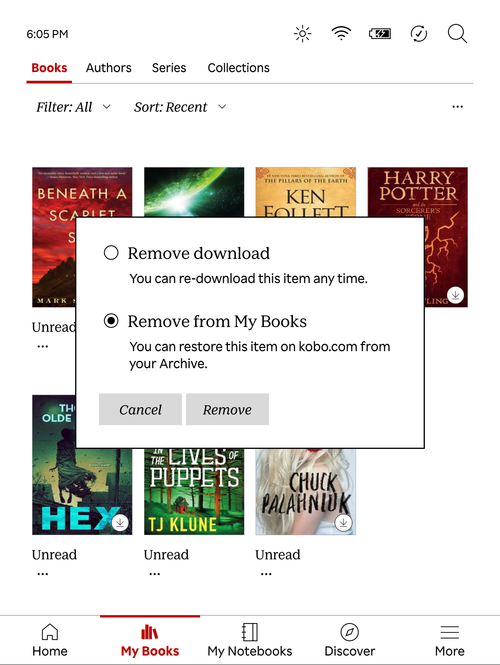
Confirm removal:
- Select "Remove from My Books"
-
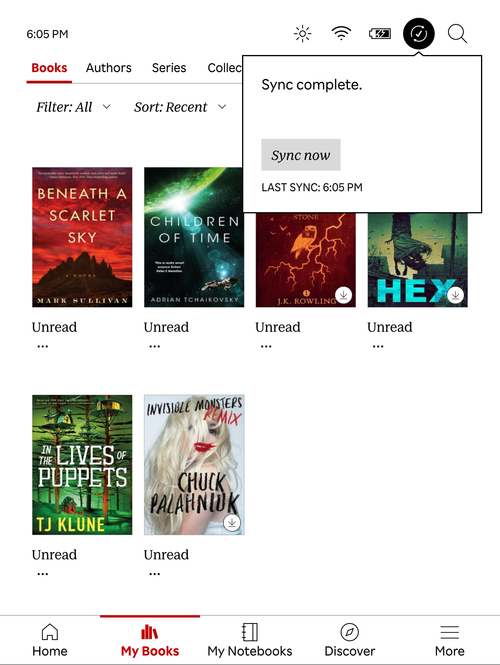
Sync the changes:
- Tap "Sync Now" at the top of the screen
- The book will be removed from both your Kobo device and your Kobo shelf in Booklore
-
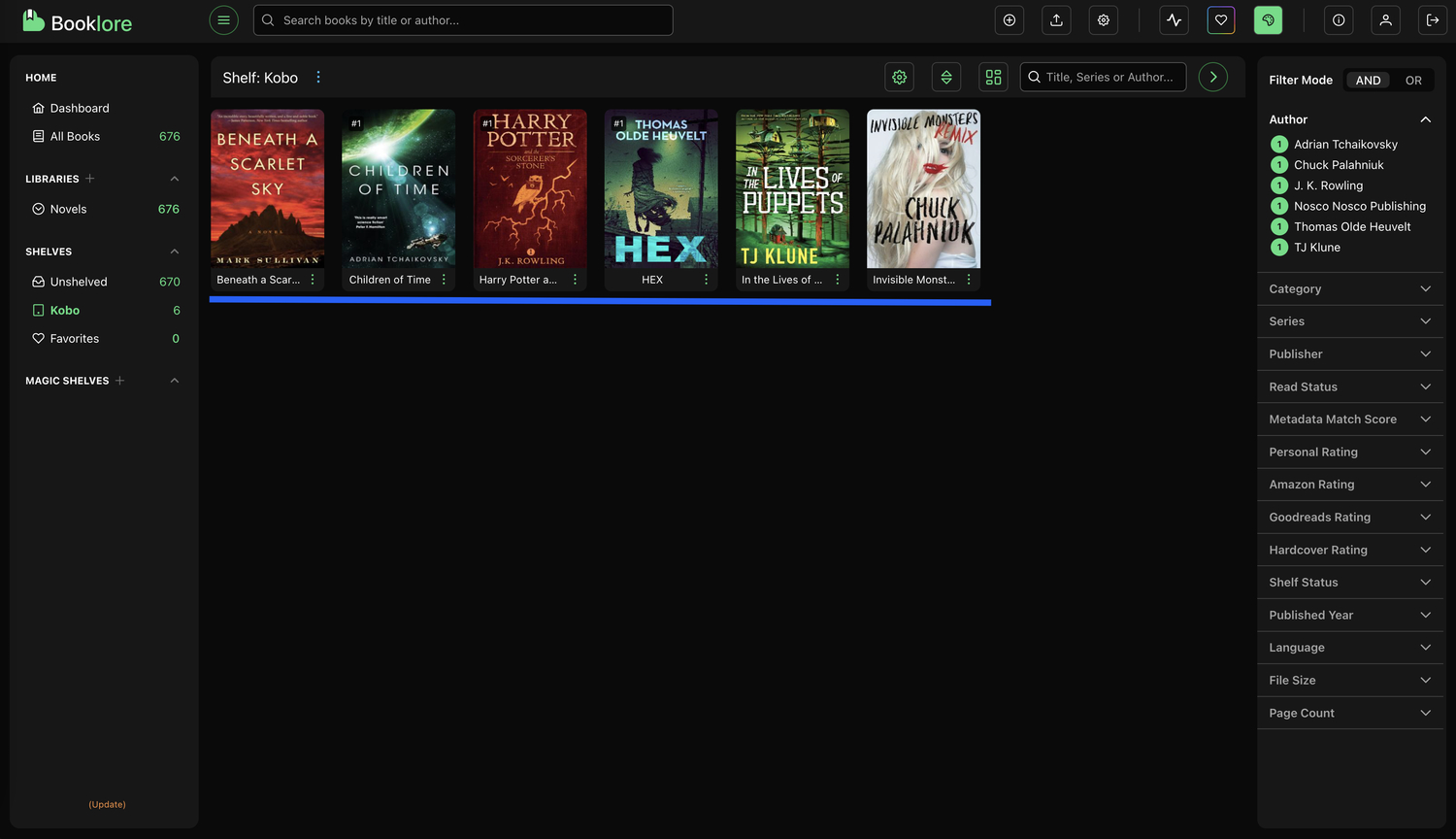
Verify in Booklore:
- Check your Kobo shelf in Booklore - the book will no longer appear there
- The book remains in your main library, just not on the Kobo shelf
Method 2: Remove via Booklore
-
Access your Kobo shelf:
- Go to your Kobo shelf in Booklore
-
Remove the book:
- Click the menu icon on the book card
- Select "Assign Shelf"
- Untick the book from your Kobo shelf
-
Sync your Kobo device:
- On your Kobo eReader, tap "Sync Now"
- The book will be removed from your device
Removing books only affects your Kobo shelf and device. All books remain safely stored in your main Booklore library.
👥 Granting Kobo Sync Permission to Other Users
By default, only admin users have Kobo Sync enabled. To allow other users to sync books to their Kobo devices, an admin must grant the appropriate permission.
Admin Requirements
- You must be logged in as an administrator
- Users must already have accounts in your Booklore instance
Enabling Kobo Sync for Users
-
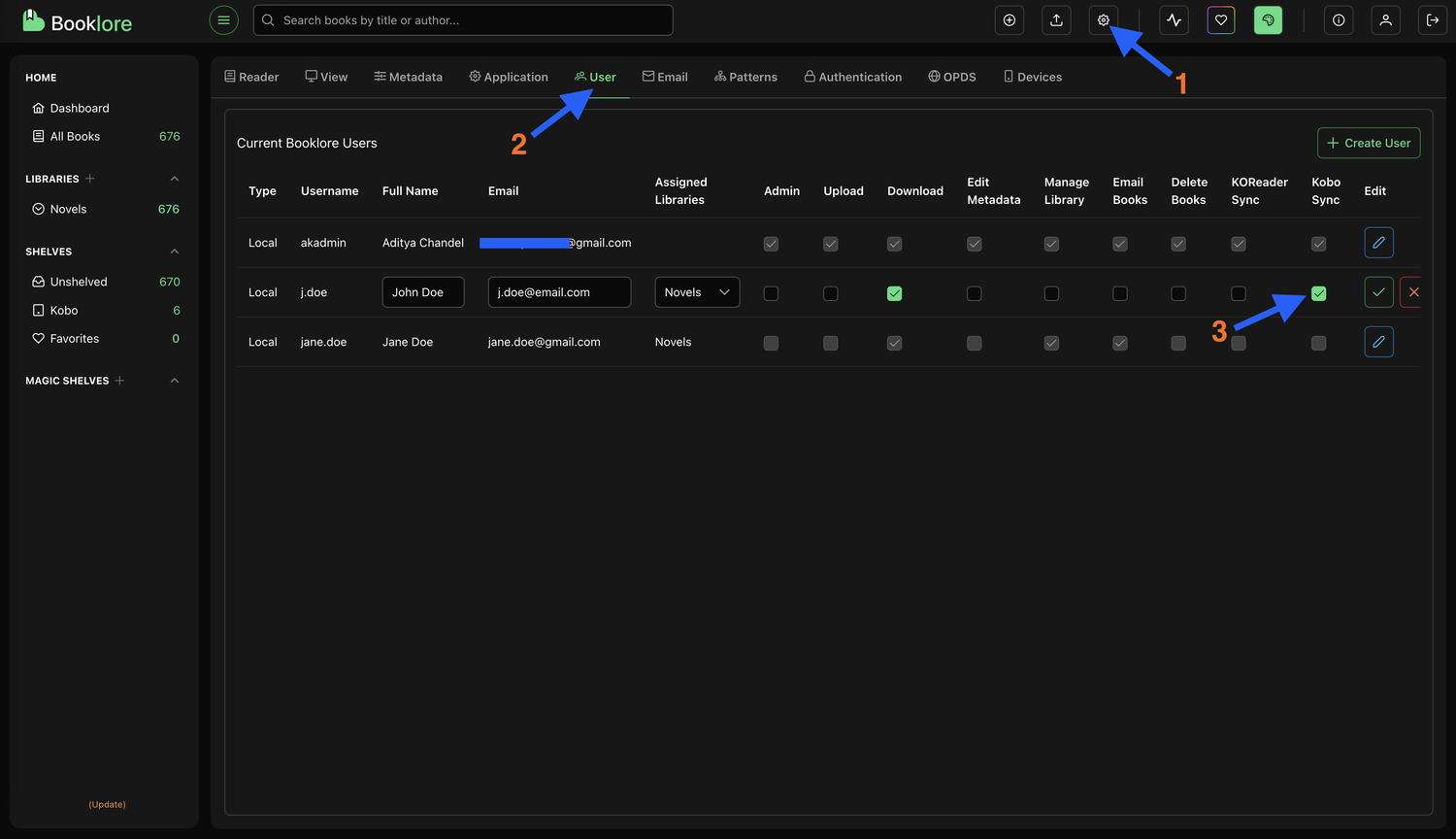
Access User Management:
- Navigate to Settings > Users in Booklore
- Browse the list of users in your system
-
Select Target User:
- Click on the user you want to grant Kobo access to
- This will open their user profile settings
-
Grant Permission:
- Locate the Permissions section
- Check the "Kobo Sync" permission checkbox
- Click Save to apply the changes
What Users Get Access To
Once granted permission, users will be able to:
- ✅ View their unique API token in Device Settings
- ✅ Create and manage their personal Kobo shelf
- ✅ Sync books between Booklore and their Kobo eReader
- ✅ Add/remove books from their Kobo device
User Notification
After granting permission:
- Users should reload the page to see the new features
- They can then follow Steps 1-4 above to set up their Kobo integration
- Each user will have their own unique API token and Kobo shelf
You can revoke Kobo Sync permission at any time by unchecking the permission and saving the user profile.
📈 Viewing Synced Progress in Booklore
Quickly check your Kobo read progress right on the book’s detail page, see a percentage and a red progress bar update in real time.
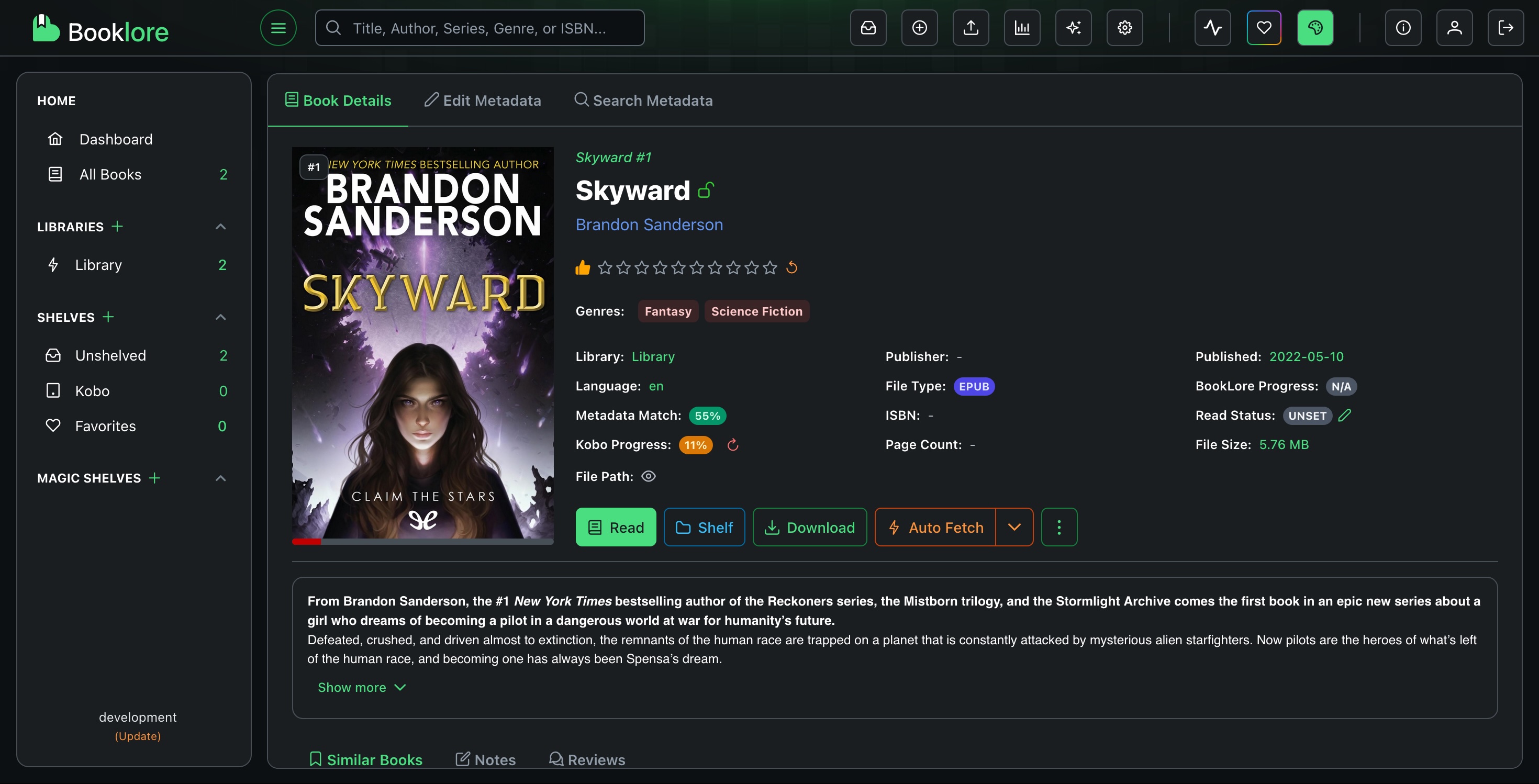
- In Booklore, you can view synced progress on the book details page as a percentage and as a red progress bar under the cover.
- To reset progress, click Reset Progress. This only resets Kobo progress in Booklore; the device’s read status remains unchanged.