🎨 Custom SVG Icons
Personalize your Booklore library with custom SVG icons for collections, tags, and more. Add your own icon designs or delete unwanted ones with an intuitive drag-and-drop interface.
Use SVG icons from sites like, Lucide, Iconoir , Heroicons, or Feather Icons for professional, consistent designs.
🌟 What You'll Achieve
With Custom SVG Icons, you can:
- Add unique icons by pasting SVG code directly
- Preview icons instantly before saving
- Browse your collection with search and pagination
- Delete icons easily using drag-and-drop to trash
- Use icons anywhere in collections, tags, and library organization
✨ How Custom Icons Work
🔄 The Icon Management Flow
-
🎨 Create or Find SVG
Design your own SVG or copy from icon libraries online. -
📋 Paste & Preview
Paste the SVG code into Booklore and see an instant preview. -
💾 Save with Name
Give your icon a memorable name and save it to your collection. -
🔍 Browse & Search
Find your icons quickly with search and pagination. -
🗑️ Delete When Needed
Drag unwanted icons to the trash bin for easy removal.
🚀 Getting Started
Opening the Icon Picker
The icon picker appears when assigning icons to a Library, Shelf, or Magic Shelf.
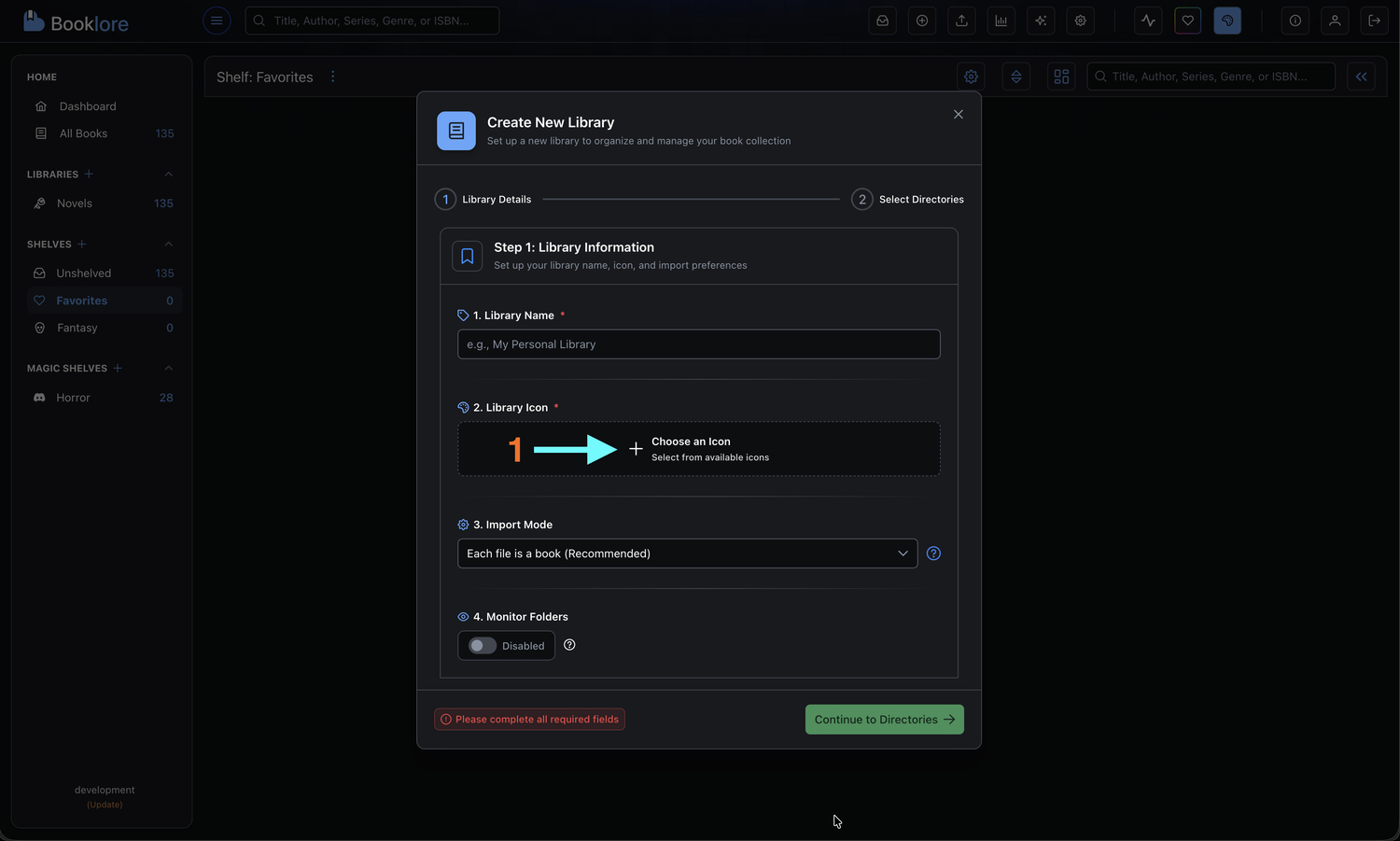
-
Navigate to Library/Shelf/Magic Shelf Settings
-
Click the Choose Icon Button
-
Choose Your Tab: Select from Prime Icons, SVG Icons, or Add SVG Icon
📖 Understanding the Icon Picker Interface
Interface Overview
The Icon Picker has three main tabs for different icon sources:
Tab 1: Prime Icons (Built-in)
Browse the default PrimeNG icon library:
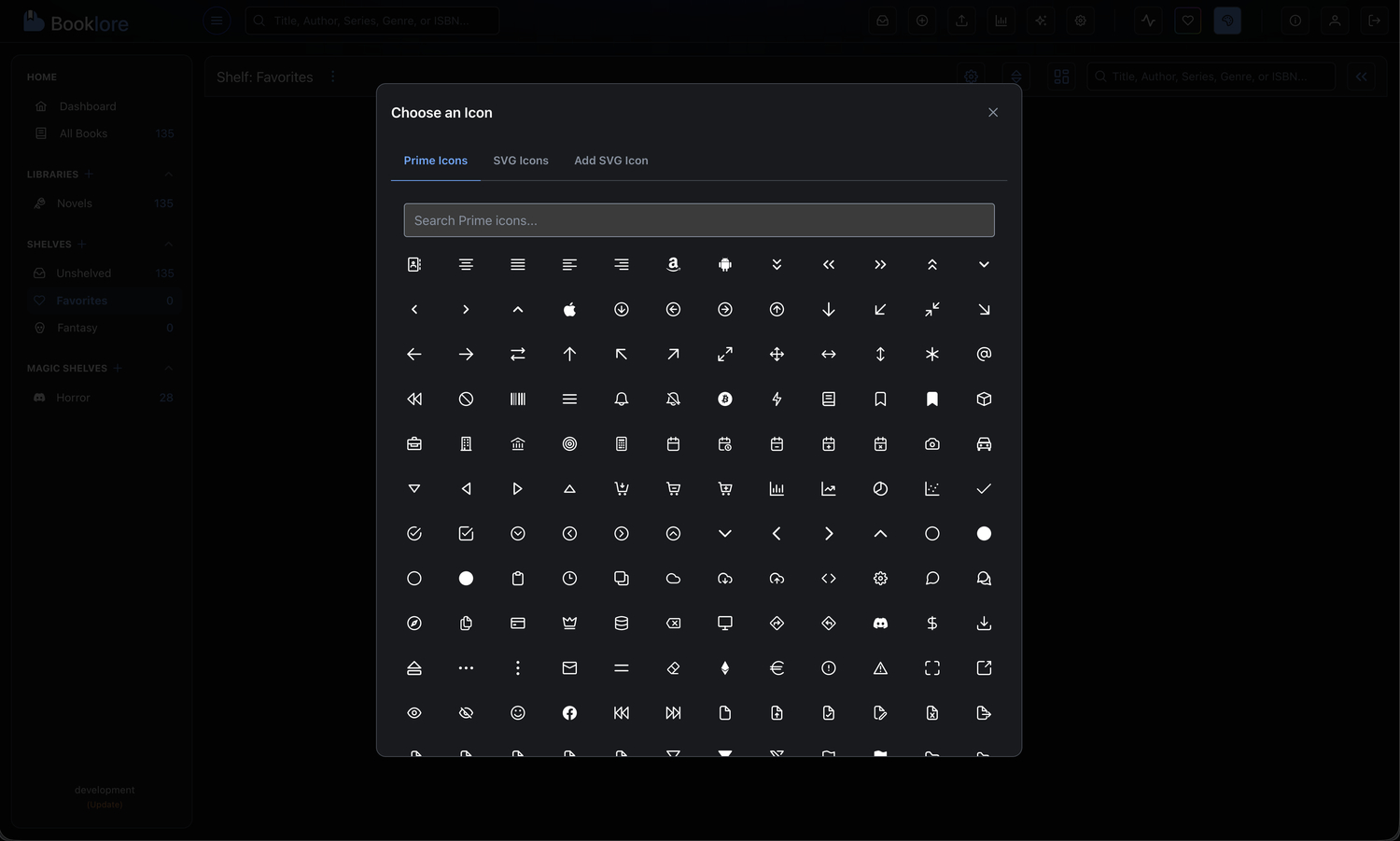
Features:
- 🔍 Search Bar: Quickly filter icons by name
- 🎯 Icon Grid: Visual grid of all available icons
- ✅ Selection: Click any icon to select and apply it
Prime Icons come pre-installed with Booklore and cover common use cases like folders, tags, books, and more.
Tab 2: SVG Icons (Your Collection)
Browse and manage your custom SVG icons:

1. Search Your Icons
Use the search bar to filter icons by name:
Search: "book" → Shows: book-open, book-closed, bookmark
2. Icon Grid Display
Each icon displays as a clickable tile with:
- Visual preview of the SVG
- Icon name on hover
3. Trash Bin (Delete Icons)
Located in the bottom-right corner for easy access.
How to Delete:
-
Drag the Icon
Click and hold on any SVG icon -
Drag to Trash
Move your cursor to the trash bin area -
Drop to Delete
Release to permanently delete the icon -
Visual Feedback
The trash bin highlights when you hover over it
Deleted icons cannot be recovered. You'll need to re-add them if needed later.
Tab 3: Add SVG Icon (Create New)
Add new custom icons by pasting SVG code:
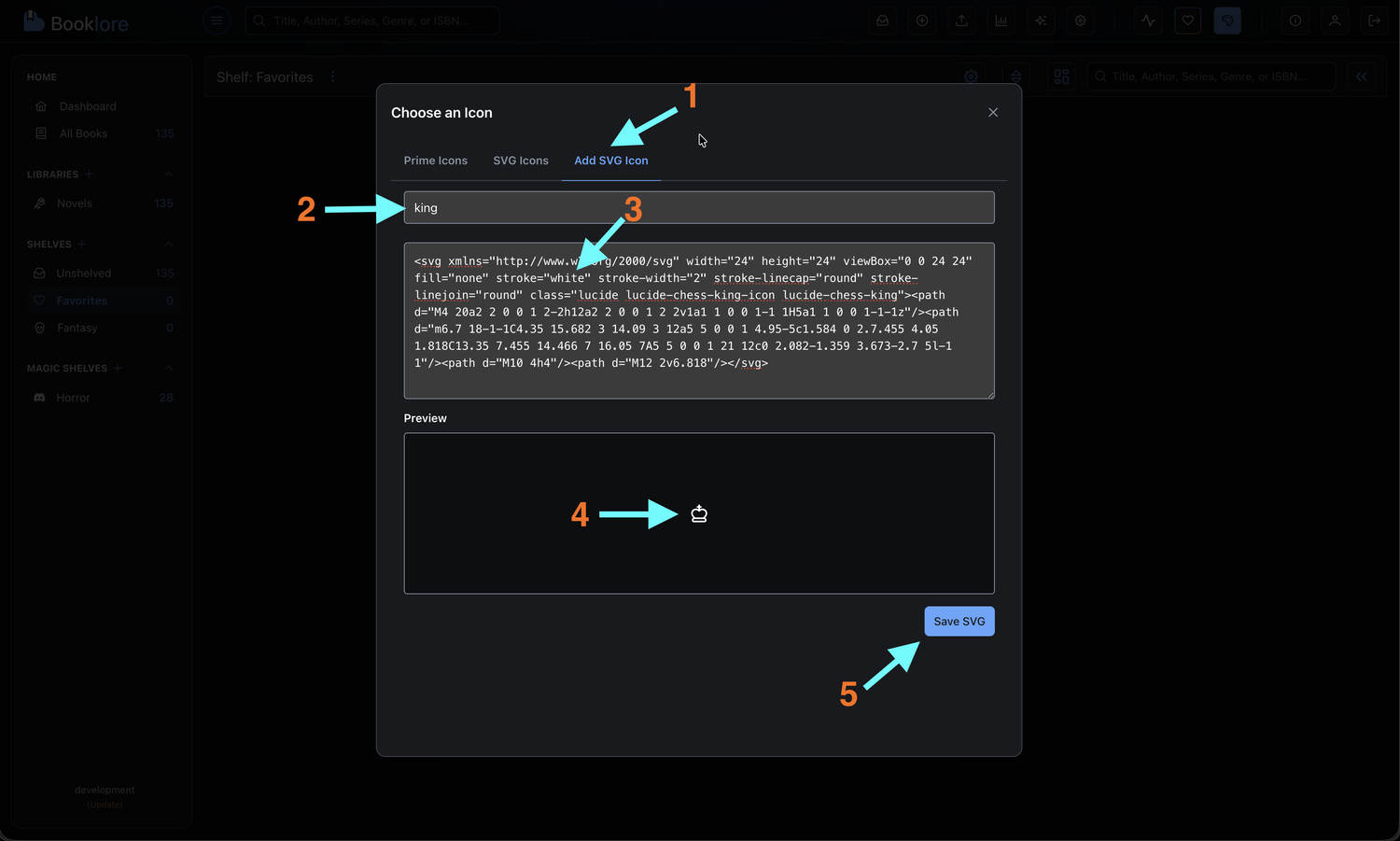
Step-by-Step Guide
1. Name Your Icon
Enter a descriptive name in the input field:
Icon Name: "rocket-ship"
Naming Rules:
- Only letters, numbers, and underscores
- Maximum 255 characters
- No spaces or special characters
Use lowercase with hyphens for consistency: my-custom-icon instead of MyCustomIcon
2. Paste SVG Code
Copy SVG code from your source and paste into the textarea:
<svg xmlns="http://www.w3.org/2000/svg" width="24" height="24" viewBox="0 0 24 24" fill="none" stroke="white" stroke-width="2" stroke-linecap="round" stroke-linejoin="round" class="lucide lucide-chess-king-icon lucide-chess-king">
    <path d="M4 20a2 2 0 0 1 2-2h12a2 2 0 0 1 2 2v1a1 1 0 0 1-1 1H5a1 1 0 0 1-1-1z"/>
    <path d="m6.7 18-1-1C4.35 15.682 3 14.09 3 12a5 5 0 0 1 4.95-5c1.584 0 2.7.455 4.05 1.818C13.35 7.455 14.466 7 16.05 7A5 5 0 0 1 21 12c0 2.082-1.359 3.673-2.7 5l-1 1"/>
    <path d="M10 4h4"/>
    <path d="M12 2v6.818"/>
</svg>
Valid SVG Sources:
- Icon libraries (Lucide, Iconoir, Heroicons, etc.)
- Custom designs from Figma, Sketch, or Illustrator
- Must include
<svg>tag - Maximum file size: 1MB
- Should include
viewBoxfor proper scaling - Recommended: Use
fill="none"andstroke="white"for best visual alignment
3. Preview Your Icon
As you paste, the preview updates automatically.
The preview shows exactly how your icon will appear in Booklore.
4. Save the Icon
Click the "Save SVG" button to finalize:
What Happens Next:
- ✅ Icon is saved to ~/booklore/data/icons/svg/
- 🔄 You're automatically switched to the SVG Icons tab
- 🎯 Your new icon is pre-selected and ready to use
🎨 Best Practices
Finding Quality SVG Icons
Recommended Icon Libraries
Choose icons from the same library for a cohesive look across your collections.
Naming Conventions
Use consistent naming for easier management:
Good Names ✅
book-open
folder-filled
tag-outline
star-filled-blue
Bad Names ❌
Icon1
MyIcon
NEW ICON!!!
icon_with_spaces
Best Practices:
- Use lowercase letters
- Separate words with hyphens
- Be descriptive but concise
- Avoid version numbers (use meaningful names instead)
🔧 Troubleshooting
Common Issues and Solutions
Issue: "Invalid SVG content"
Causes:
- Missing
<svg>tag - Incomplete or corrupted SVG code
- Non-XML characters
Solutions:
- Copy the entire SVG code (from
<svg>to</svg>) - Validate SVG using SVG Validator
- Try downloading the SVG file and copying from there
Issue: Icon doesn't appear after saving
Causes:
- Browser cache
- Network error during save
Solutions:
- Refresh the page (F5)
- Clear browser cache
- Try saving again
- Check browser console for errors
Issue: Icon appears too large/small
Causes:
- Missing
viewBoxattribute - Hardcoded
widthandheight
Solutions:
<!-- Add or fix viewBox -->
<svg viewBox="0 0 24 24">
    <!-- Remove width/height if present -->
</svg>
Issue: Icon colors don't match theme
Causes:
- Hardcoded
fillorstrokecolors in SVG
Solutions:
<!-- Replace hardcoded colors -->
        fill="#000000" → fill="none"
        stroke="#ff0000" → stroke="white"