📚 First Library Configuration
Set up your first library to organize and manage your digital book collection. A library monitors one or more folders for automatic indexing and metadata enrichment.
📖 Understanding Libraries
A library is a logical grouping of book folders with its own configuration and metadata cache. Each library can monitor multiple folders, but folders can only belong to one library.
Supported Formats: EPUB, PDF, CBZ, CBR, and CB7
Create separate libraries for different collections (e.g., Novels, Comics, Technical Books).
🛠️ Configuration Steps
Step 1: Start Library Creation
Click "Add a Library" from your dashboard.
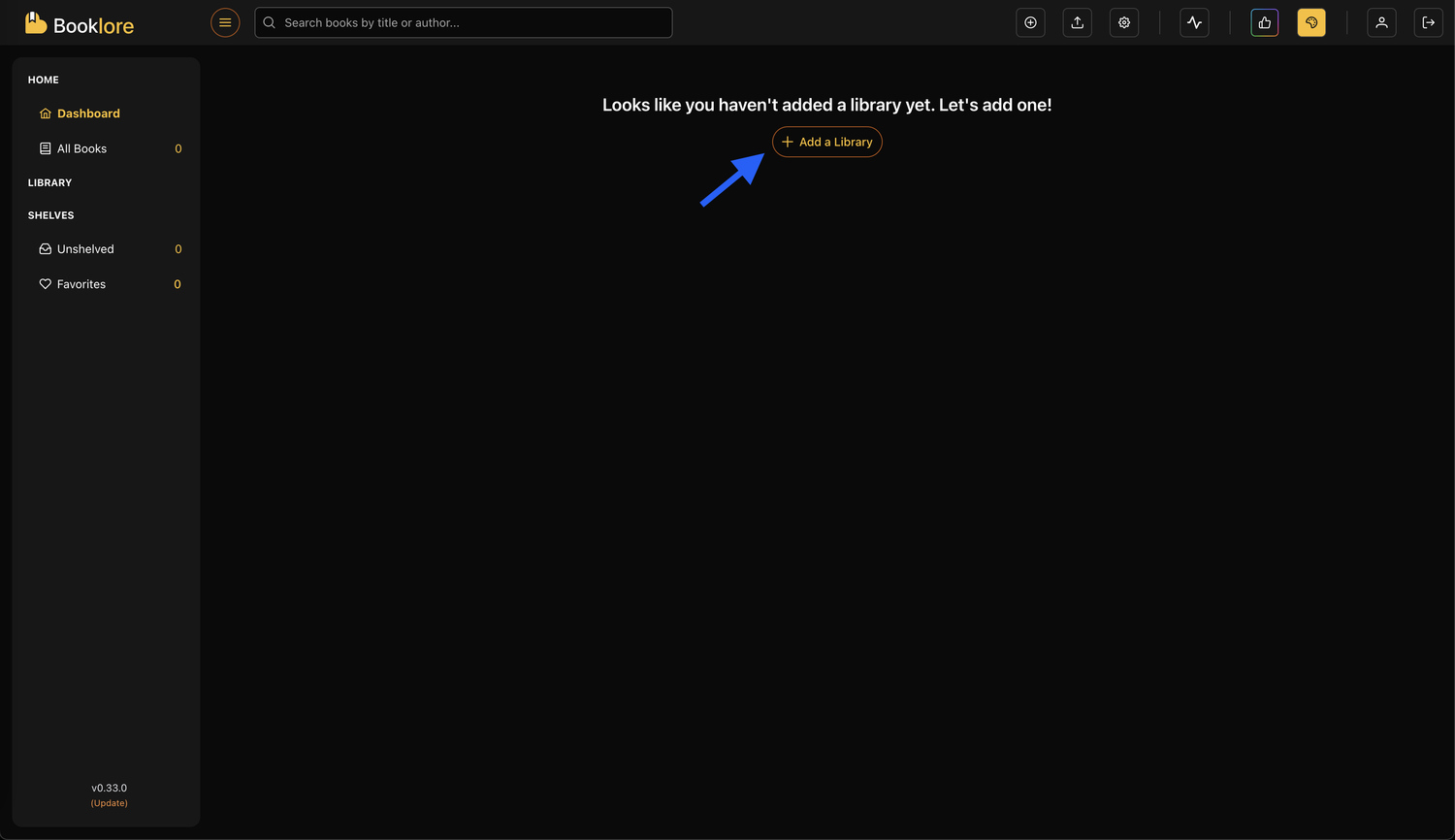
Step 2: Configure Library Details
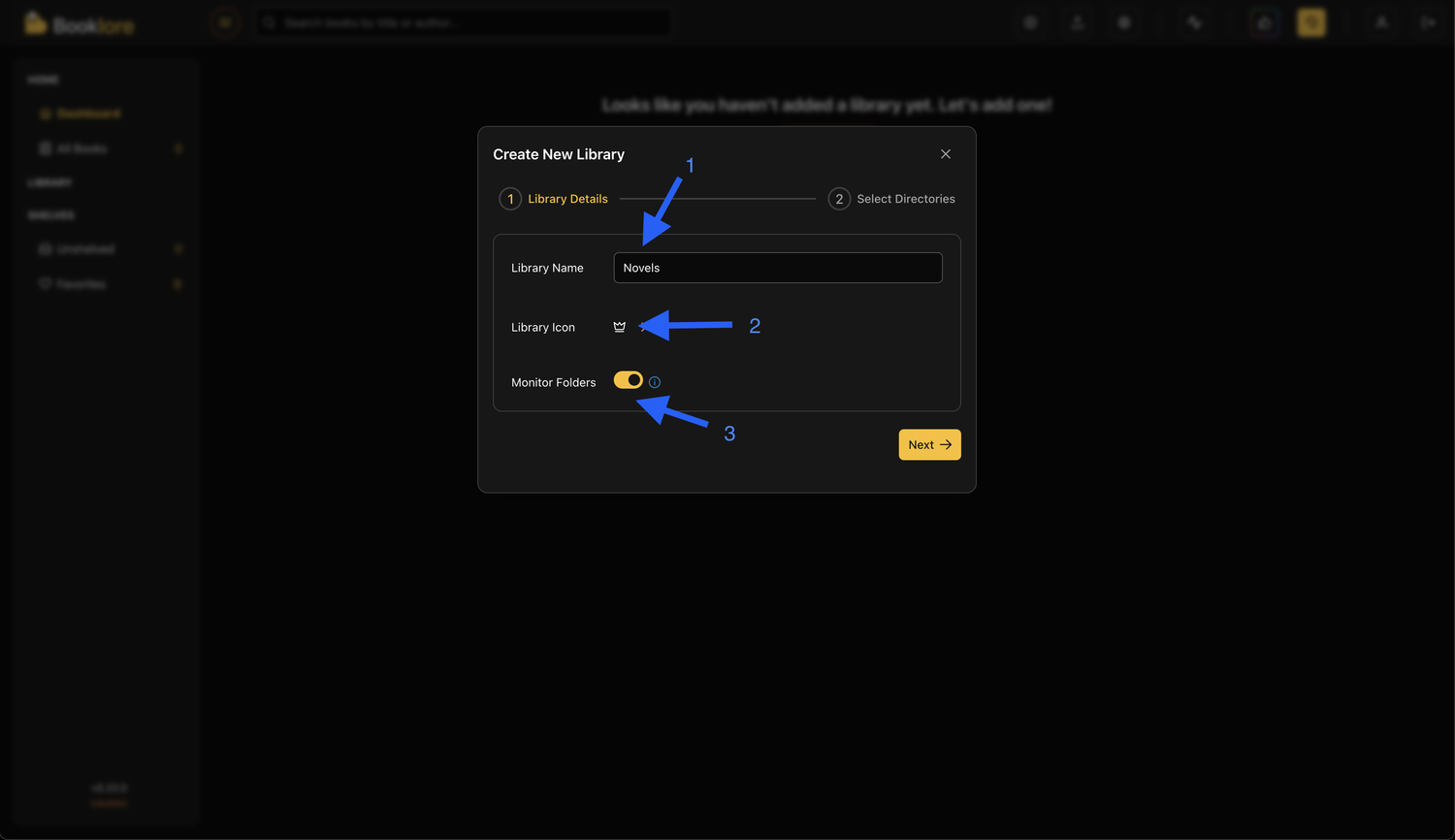
Required:
- Library Name: Descriptive identifier (e.g., "Science Fiction", "Manga Collection")
- Library Icon: Visual identifier from icon picker
Optional:
- Monitoring: Enable to automatically detect new/changed/deleted books
- Recommended for active collections
- May impact performance with large folders
Click "Next" to continue.
Step 3: Add Book Folders
- Click "Add Book Folders"
- Navigate to your books folder
- Click "Select" to confirm
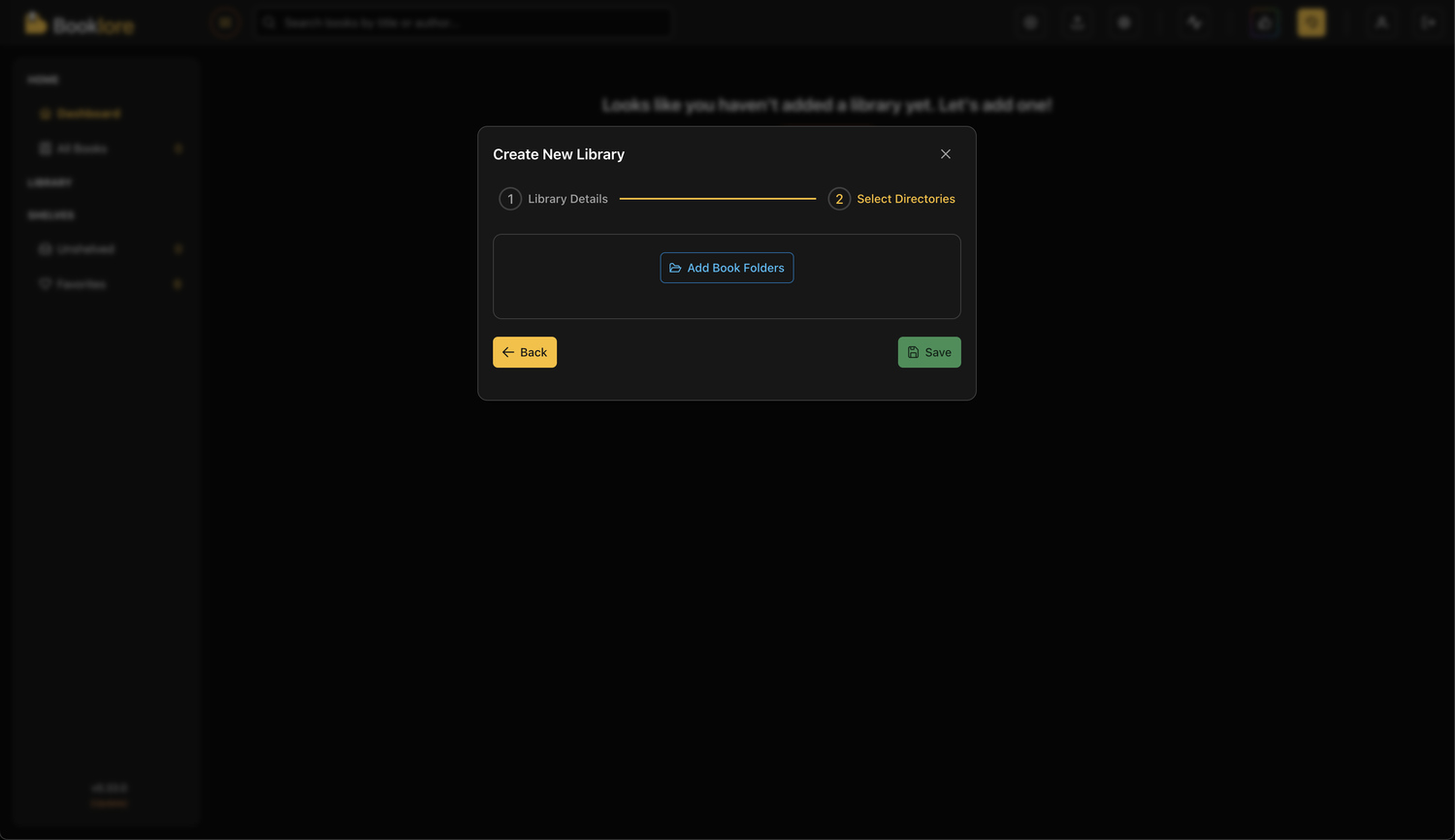
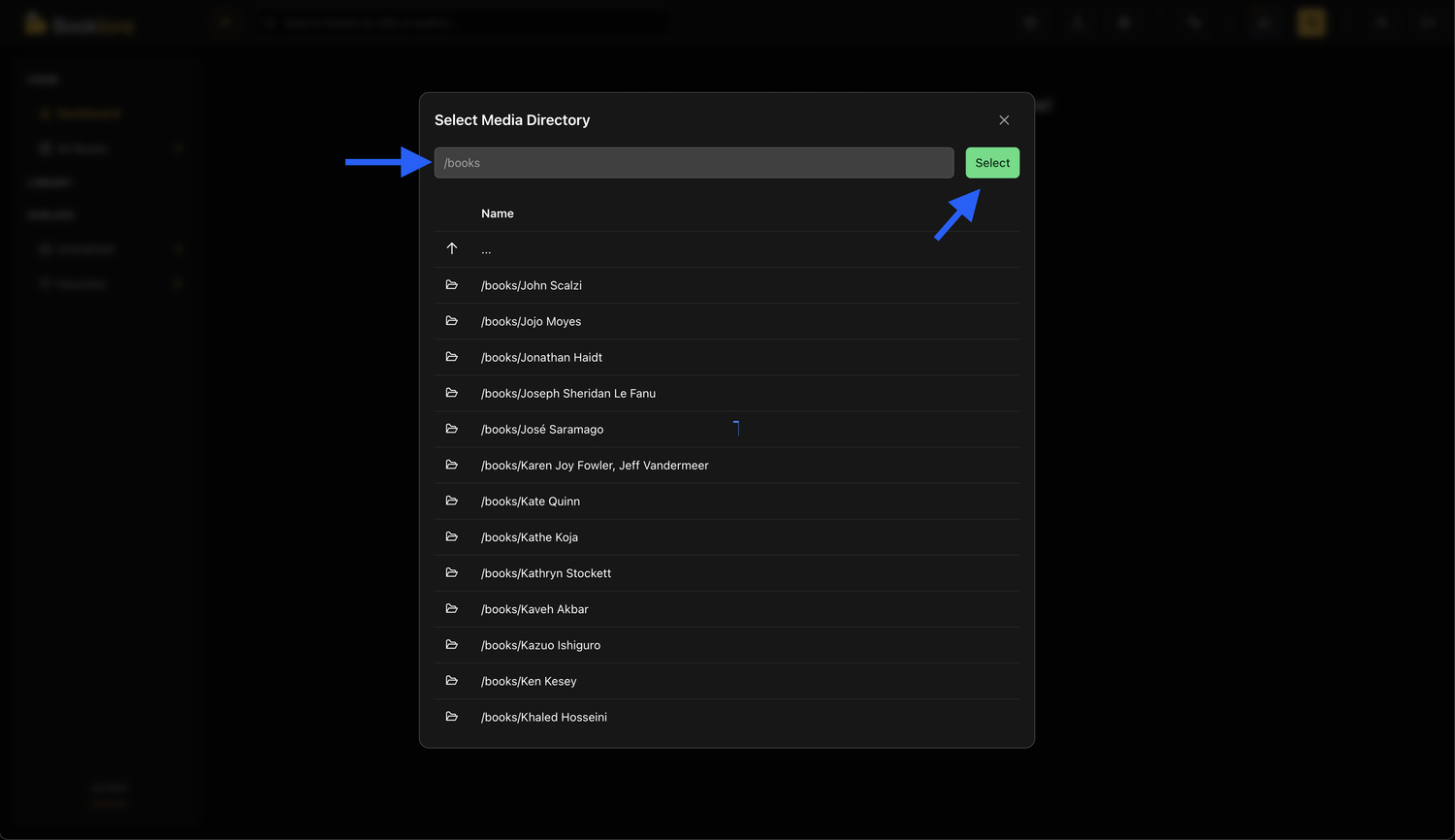
Managing Folders:
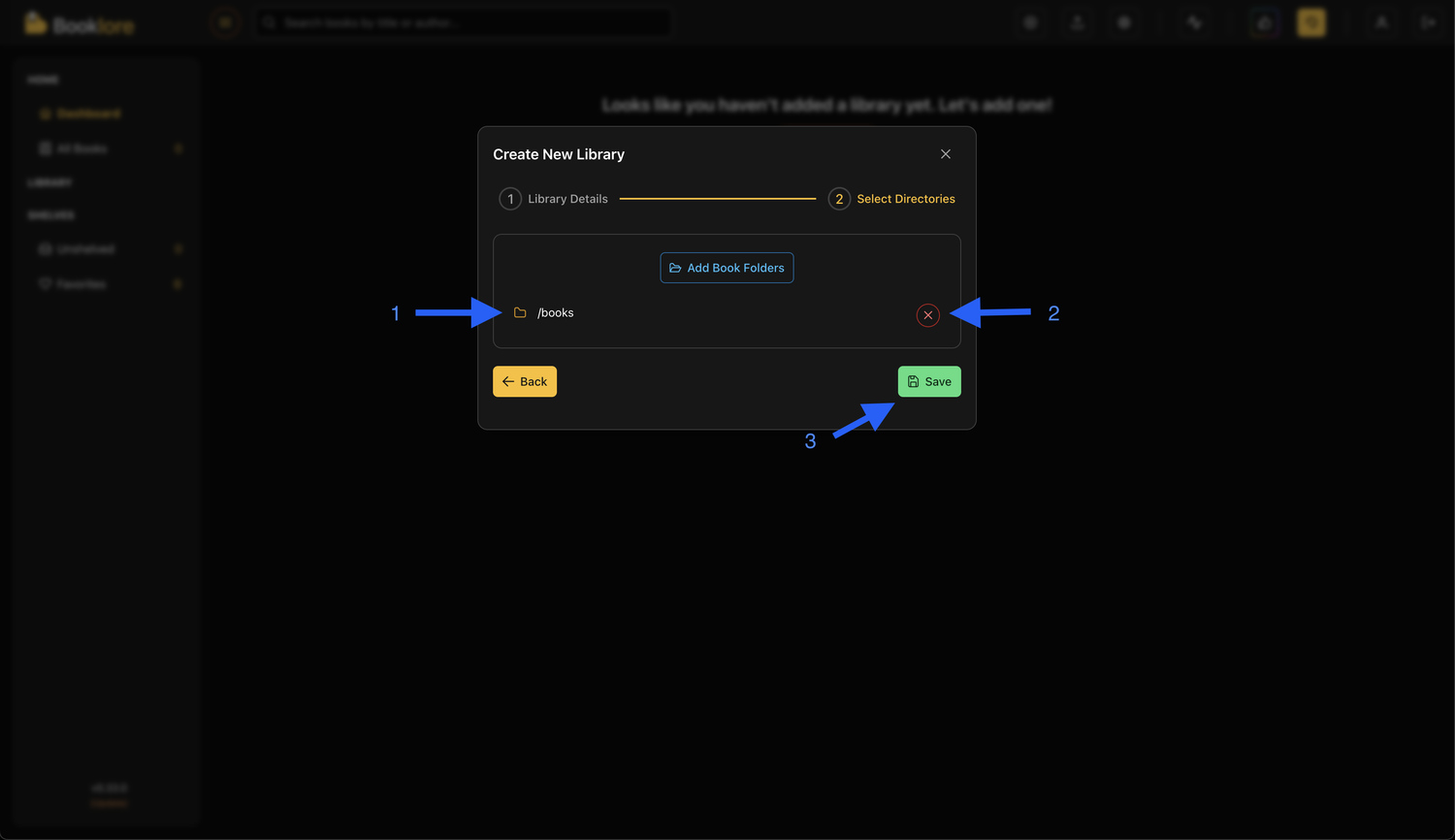
- Multiple folders can be added to one library
- Remove folders using the ❌ button
- Ensure Docker has read permissions for selected paths
Check Docker volume mounts in docker-compose.yml if folders aren't accessible.
Click "Save" to begin processing.
Step 4: Library Processing
Booklore automatically processes your library:
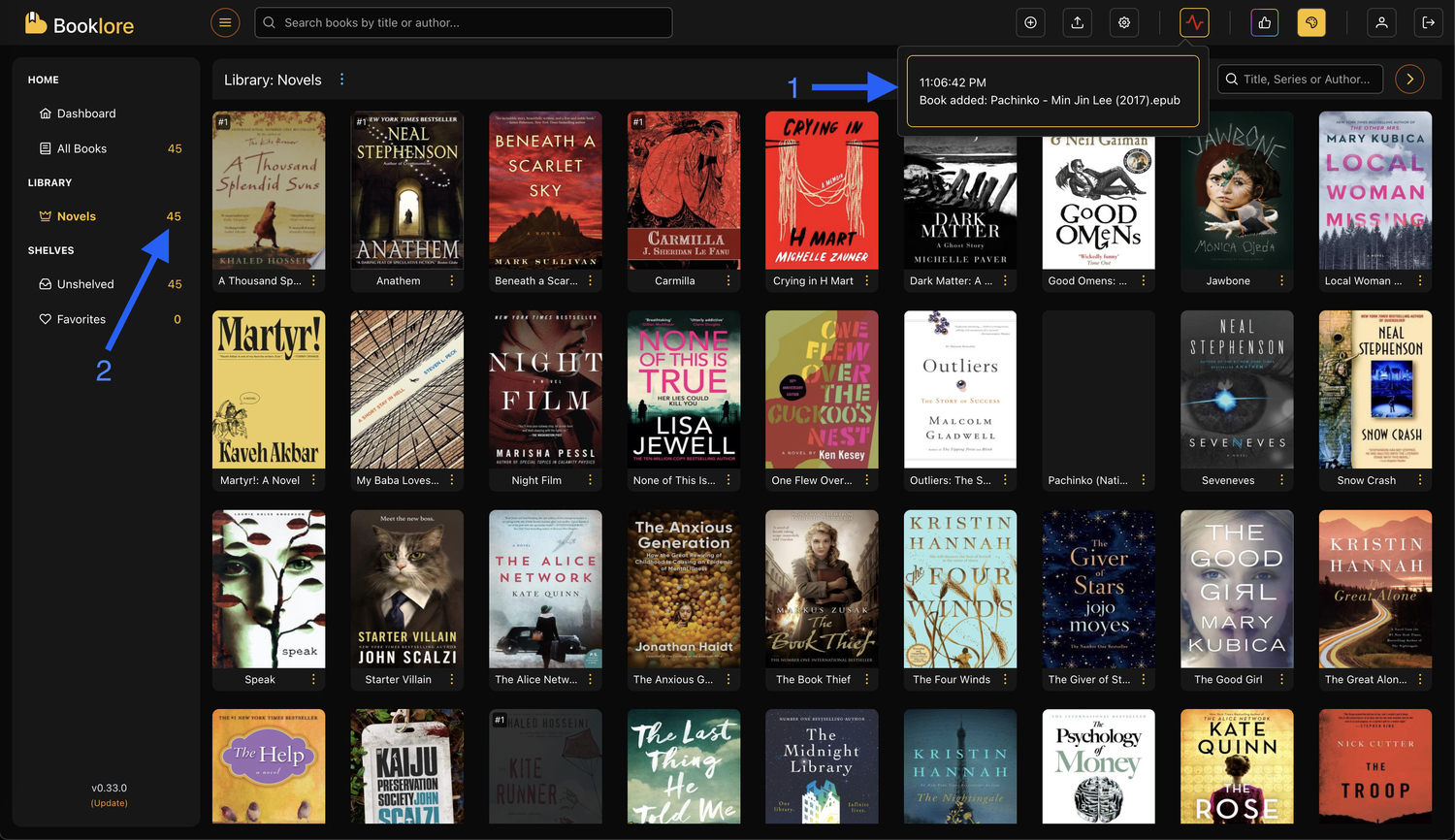
Processing includes:
- Folder scanning for supported files
- Metadata extraction from books
- Cover thumbnail generation
- Database indexing
Processing continues in the background. Navigate freely while it completes.
🎯 Post-Setup
Verify Setup
- Check book count in sidebar
- Browse library to view indexed books
- Test search functionality
Next Steps
- Configure metadata providers
- Adjust library settings for monitoring and caching
- Add more libraries for different collections
Your library is ready. Start browsing, searching, and reading your collection!
📋 Troubleshooting
Books Not Appearing
Check:
- Docker volume mounts in
docker-compose.yml - File formats are supported
- Files have proper extensions (.epub, .pdf, etc.)
- Container logs for permission errors
Slow Processing
Solutions:
- Increase Docker memory/CPU limits
- Process network folders in batches
- Temporarily disable monitoring during scan
- Split into smaller libraries
Missing Metadata
Solutions:
- Use online metadata fetchers
- Manually add covers/data via editor
- Check file integrity
Monitoring Not Working
Solutions:
- Verify monitoring enabled in settings
- Trigger manual scan: Library settings → Scan Now
- Use scheduled scans for network folders