📖 Advanced Metadata Fetch Configuration
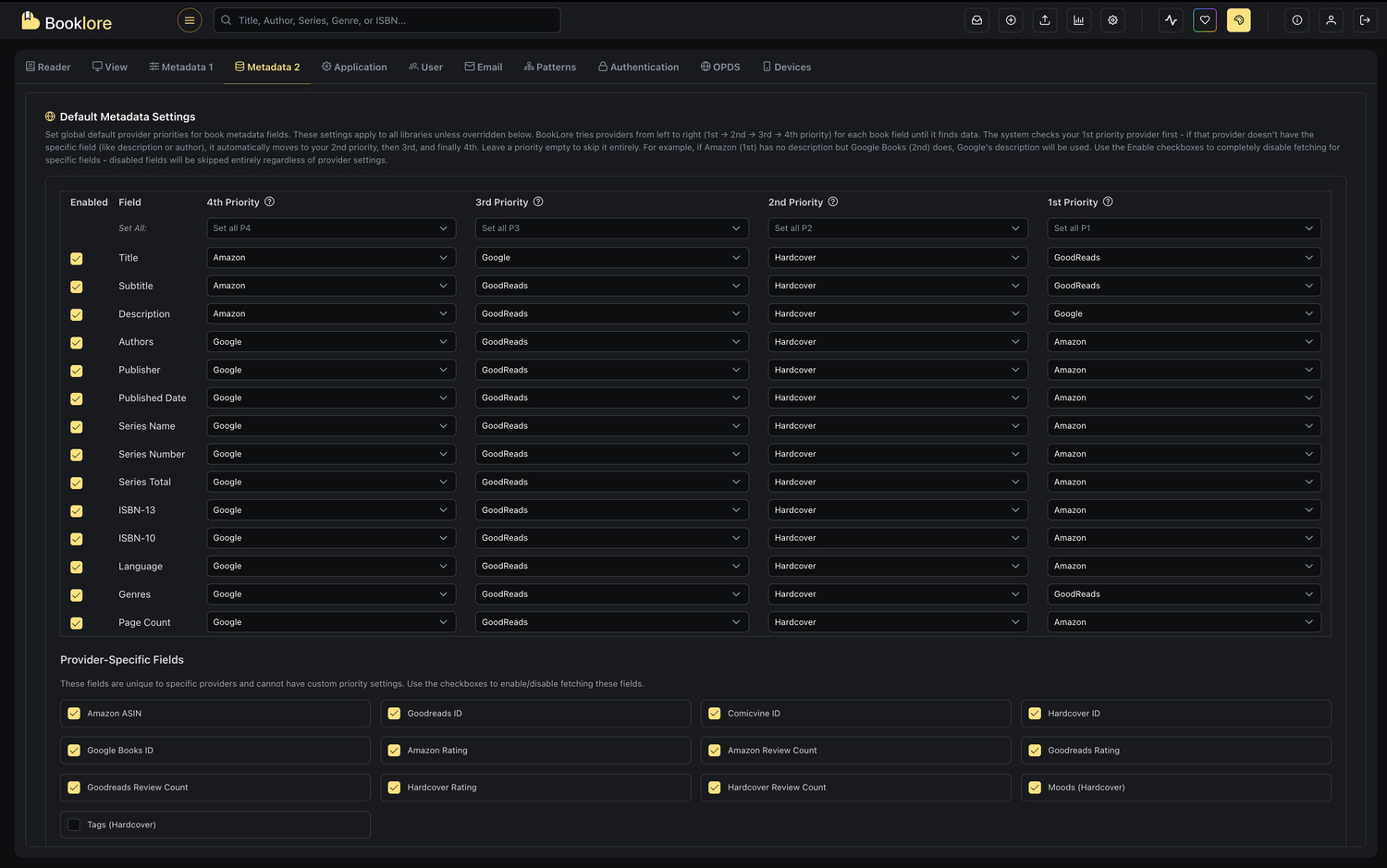
Take full control over how Booklore enriches your book metadata. Configure provider priorities, enable specific fields, and customize the metadata fetching behavior to match your preferences.
🌟 What You'll Achieve
With advanced metadata fetch configuration, you can:
- Prioritize metadata sources - Choose which provider to try first, second, third, and fourth for each field
- Enable/disable specific fields - Fetch only the metadata you need
- Control cover updates - Decide whether to refresh existing book covers
- Manage genre merging - Choose to combine or replace existing genres
- Review before applying - Preview and approve changes before saving
If your first-choice provider doesn't have data for a field, Booklore automatically tries your second choice, then third, then fourth. This ensures you get the most complete metadata possible.
✨ Key Features & Capabilities
🔄 Priority-Based Provider System
- Four Priority Levels: Set up to 4 provider preferences per field
- Automatic Fallback: System tries each priority in order until data is found
- Flexible Configuration: Different fields can use different provider priorities
- Bulk Operations: Set the same priority for all fields at once
📊 Supported Metadata Providers
Booklore integrates with multiple metadata sources:
- Amazon: Comprehensive book data including ratings and reviews
- Google Books: Extensive catalog with detailed descriptions
- Goodreads: Community ratings and reviews
- Hardcover: Modern book data with moods and tags
- Comicvine: Specialized comic book metadata
- Douban: Asian literature and international titles
- Lubimyczytac: Poland's largest book rating platform for Polish literature
📋 Field Categories
Standard Book Fields
Fields that can have custom priority settings:
- Basic Info: Title, Subtitle, Description
- Author Info: Authors, Publisher, Published Date
- Series Info: Series Name, Number, Total
- Identifiers: ISBN-13, ISBN-10
- Additional: Language, Genres, Cover Image, Page Count
Provider-Specific Fields
Unique fields tied to specific providers:
- Amazon: ASIN, Amazon Rating, Amazon Review Count
- Goodreads: Goodreads ID, Goodreads Rating, Goodreads Review Count
- Hardcover: Hardcover ID, Hardcover Rating, Hardcover Review Count, Moods, Tags
- Comicvine: Comicvine ID
- Google: Google Books ID
🎯 Understanding the Priority System
How Priorities Work
When Booklore fetches metadata for a book:
- 1st Priority (P1): The system tries your first-choice provider
- 2nd Priority (P2): If P1 doesn't have data, tries your second choice
- 3rd Priority (P3): If P2 doesn't have data, tries your third choice
- 4th Priority (P4): Final fallback if all previous priorities fail
Example Priority Configuration
For the "Title" field:
- P1: Google Books (try first)
- P2: Amazon (try second)
- P3: Goodreads (try third)
- P4: Hardcover (try last)
If Google Books doesn't have the title, the system automatically tries Amazon, then Goodreads, then Hardcover until it finds data.
At least one priority (P1, P2, P3, or P4) must be set for each enabled field, or the system will show an error.
🛠️ Configuration Guide
Step 1: Accessing the Configuration
-
Navigate to Metadata Settings:
- Open the metadata fetch dialog in Booklore
- Look for the advanced configuration section or button
-
View Configuration Table:
- You'll see a table with all available fields
- Each field has columns for the four priority levels
Step 2: Understanding the Table Layout
The configuration table has six columns:
| Column | Purpose |
|---|---|
| Enabled | Checkbox to enable/disable fetching this field |
| Field | The metadata field name (e.g., Title, Authors) |
| 4th Priority | Last fallback provider |
| 3rd Priority | Third choice provider |
| 2nd Priority | Second choice provider |
| 1st Priority | First choice provider |
Priorities are displayed right-to-left (4th → 1st) to make it easy to read the fallback sequence from left to right.
Step 3: Setting Individual Field Priorities
Enabling/Disabling Fields
-
Enable a field:
- Check the checkbox in the "Enabled" column
- The field will be fetched during metadata updates
-
Disable a field:
- Uncheck the checkbox
- The field will be skipped during metadata updates
- Dropdowns become disabled (grayed out)
Selecting Providers
- Click the dropdown for any priority level
- Choose a provider from the list:
- Amazon
- GoodReads
- Hardcover
- Comicvine
- Douban
- Leave as "Unset" if you don't want that priority level
Example: Configuring the "Description" Field
Field: Description
Enabled: ✓
P4: Hardcover
P3: Goodreads
P2: Amazon
P1: Google

Result: System tries Google first, then Amazon, then Goodreads, then Hardcover
Step 4: Using Bulk Operations
To quickly set priorities for all fields at once:
- Locate the "Set All" row at the top of the table
- Select a provider from any priority column dropdown
- All enabled fields automatically get that provider for that priority
- Select "Clear All" to remove all providers for that priority level
Example Bulk Operation
Setting "Google" in the "Set All P1" dropdown:
- All enabled fields get "Google" as their 1st Priority
- You can still customize individual fields afterward
Use bulk operations to set a base configuration, then fine-tune specific fields as needed.
🎨 Provider-Specific Fields Configuration
Some fields are unique to specific providers and work differently:
Available Provider-Specific Fields
- Amazon ASIN: Amazon's unique product identifier
- Goodreads ID: Goodreads book identifier
- Comicvine ID: Comic book database identifier
- Hardcover ID: Hardcover platform identifier
- Google Books ID: Google's book identifier
- Amazon Rating & Review Count: Amazon's rating data
- Goodreads Rating & Review Count: Goodreads rating data
- Hardcover Rating & Review Count: Hardcover rating data
- Moods: Hardcover's mood tags
- Tags: Hardcover's book tags
Configuring Provider-Specific Fields
- No Priority Settings: These fields don't have P1-P4 dropdowns
- Simple Enable/Disable: Just check or uncheck the field
- Automatic Provider: The field's native provider is automatically used
These fields don't have P1-P4 dropdowns. Just check or uncheck to enable/disable, and the field's native provider is automatically used.
Example Configuration
☑ Amazon ASIN - Enabled (automatically fetches from Amazon)
☑ Goodreads Rating - Enabled (automatically fetches from Goodreads)
☐ Moods - Disabled (won't fetch Hardcover moods)
⚙️ Additional Options
Cover Update Settings
Update covers checkbox controls whether to refresh book cover images:
-
☑ Enabled: Fetch and update book cover images
- Replaces existing covers with new ones from providers
- Useful for improving cover quality or fixing missing covers
-
☐ Disabled: Keep existing covers
- Only adds covers to books that don't have one
- Preserves your custom or preferred covers
Enable this when you want to upgrade cover quality, disable it to preserve custom covers.
Genre Management
Merge genres checkbox controls how new genres are handled:
-
☑ Enabled: Combine new genres with existing ones
- Adds fetched genres to the book's current genre list
- Creates a comprehensive genre collection
- Recommended for enriching genre data
-
☐ Disabled: Replace existing genres
- Completely replaces current genres with fetched ones
- Useful for cleaning up incorrect genre assignments
When "Merge genres" is disabled, all existing genres are removed and replaced with fetched genres.
Review Before Apply
Manual review checkbox controls the approval workflow:
-
☑ Enabled: Review and approve metadata changes before saving
- See a side-by-side comparison of old vs. new metadata
- Choose which changes to accept or reject
- Prevents unwanted overwrites
- Recommended for important libraries
-
☐ Disabled: Automatically apply all fetched metadata
- Changes are saved immediately without review
- Faster for bulk operations
- Trust the provider data completely
Enable manual review for valuable collections or when testing new configurations.
💾 Saving Your Configuration
Save Options
Two buttons are available at the bottom:
-
Reset Form
- Clears all provider selections (sets all to "Unset")
- Re-enables all fields
- Resets all additional options to defaults
- Does NOT save changes
-
Save / Apply Configuration
- Validates that all enabled fields have at least one provider
- Saves your configuration
- Applies the settings for future metadata fetches
- Shows success or error message
Validation Rules
Before saving, the system checks:
- ✅ Each enabled standard field has at least one provider (P1, P2, P3, or P4)
- ✅ Provider-specific fields are only enabled/disabled (no provider required)
- ✅ At least one field is enabled
If validation fails, you'll see: "At least one provider (P1–P4) must be selected for each enabled book field."
📋 Configuration Examples
Example 1: Prioritize Quality Over Speed
Goal: Get the most accurate metadata, trying multiple sources
Title:
  P1: Google (most comprehensive)
  P2: Amazon (good fallback)
  P3: Goodreads (community data)
  P4: Hardcover (modern titles)

Description:
  P1: Google (detailed descriptions)
  P2: Amazon (product descriptions)
  P3: Goodreads (user-generated)
  P4: Unset

Authors:
  P1: Google (authoritative)
  P2: Goodreads (complete names)
  P3: Amazon (verified)
  P4: Hardcover (recent authors)
Example 2: Speed-Focused Configuration
Goal: Fast fetching with minimal fallbacks
All standard fields:
  P1: Google
  P2: Unset
  P3: Unset
  P4: Unset

Provider-specific fields:
  Only essential IDs enabled
Example 3: Comic Book Focused
Goal: Optimize for comic books and graphic novels
Title/Authors/Publisher:
  P1: Comicvine
  P2: Google
  P3: Amazon
  P4: Unset

Description:
  P1: Comicvine
  P2: Goodreads
  P3: Google
  P4: Unset

Provider-specific:
  ☑ Comicvine ID
  ☐ Other provider IDs
Example 4: Preserve Existing Data
Goal: Only fill in missing fields, keep existing data
Configuration:
  - Enable only fields that are commonly missing
  - Disable: Title, Authors (usually correct from files)
  - Enable: Description, Series Info, Genres (often missing)

Options:
  ☐ Update covers (preserve custom covers)
  ☑ Merge genres (add to existing)
  ☑ Manual review (check before applying)
📊 Quick Reference Table
| Field | Recommended P1 | Recommended P2 | Recommended P3 | Recommended P4 | Notes |
|---|---|---|---|---|---|
| Title | Goodreads | Hardcover | Amazon | Google most authoritative; avoid Amazon (often adds series info to title) | |
| Subtitle | Goodreads | Hardcover | Amazon | Often missing from all providers; Google most complete when available | |
| Description | Goodreads | Hardcover | Amazon | Google has detailed publisher descriptions; Hardcover best for recent releases | |
| Authors | Goodreads | Hardcover | Amazon | Goodreads provides full names consistently; Google most accurate for multi-author books | |
| Publisher | Goodreads | Hardcover | Amazon | Google and Goodreads most reliable; consider imprint vs parent publisher preferences | |
| Published Date | Goodreads | Hardcover | Amazon | Google uses original publication date; Amazon may show reprint dates | |
| Series Name | Goodreads | Hardcover | Amazon | Goodreads most comprehensive for series; Hardcover excellent for recent series | |
| Series Number | Goodreads | Hardcover | Amazon | Goodreads handles fractional numbers (e.g., 2.5); ensure consistency with Series Name source | |
| ISBN-13 | Goodreads | Hardcover | Amazon | Critical for book identification; Google most reliable; prefer ISBN-13 over ISBN-10 | |
| Language | Goodreads | Hardcover | Amazon | Google uses ISO codes; essential for multi-language libraries; avoid Amazon (inconsistent) | |
| Genres | Goodreads | Hardcover | Unset | Goodreads community-curated; Hardcover modern/nuanced; avoid Amazon (promotional categories) | |
| Cover | Amazon | Goodreads | Hardcover | Amazon highest resolution; Goodreads good fallback; Google may have dated covers | |
| Page Count | Goodreads | Hardcover | Amazon | Varies by edition (hardcover vs paperback); Google most consistent with print editions |
- Google Books: Best overall accuracy and completeness; authoritative publisher data
- Goodreads: Excellent for series, genres, and author names; strong community curation
- Hardcover: Best for recent releases (2020+); modern genre classification and moods
- Amazon: High-quality covers but may add marketing text to titles; use as fallback
- Comicvine: Essential for comics/manga; use as P1 for all fields when working with comics
- Douban: Excellent for Asian literature; use as P1 when building Chinese/Japanese/Korean libraries
There's no "perfect" configuration - it depends on your library content, priorities, and preferences. Experiment to find what works best for you!