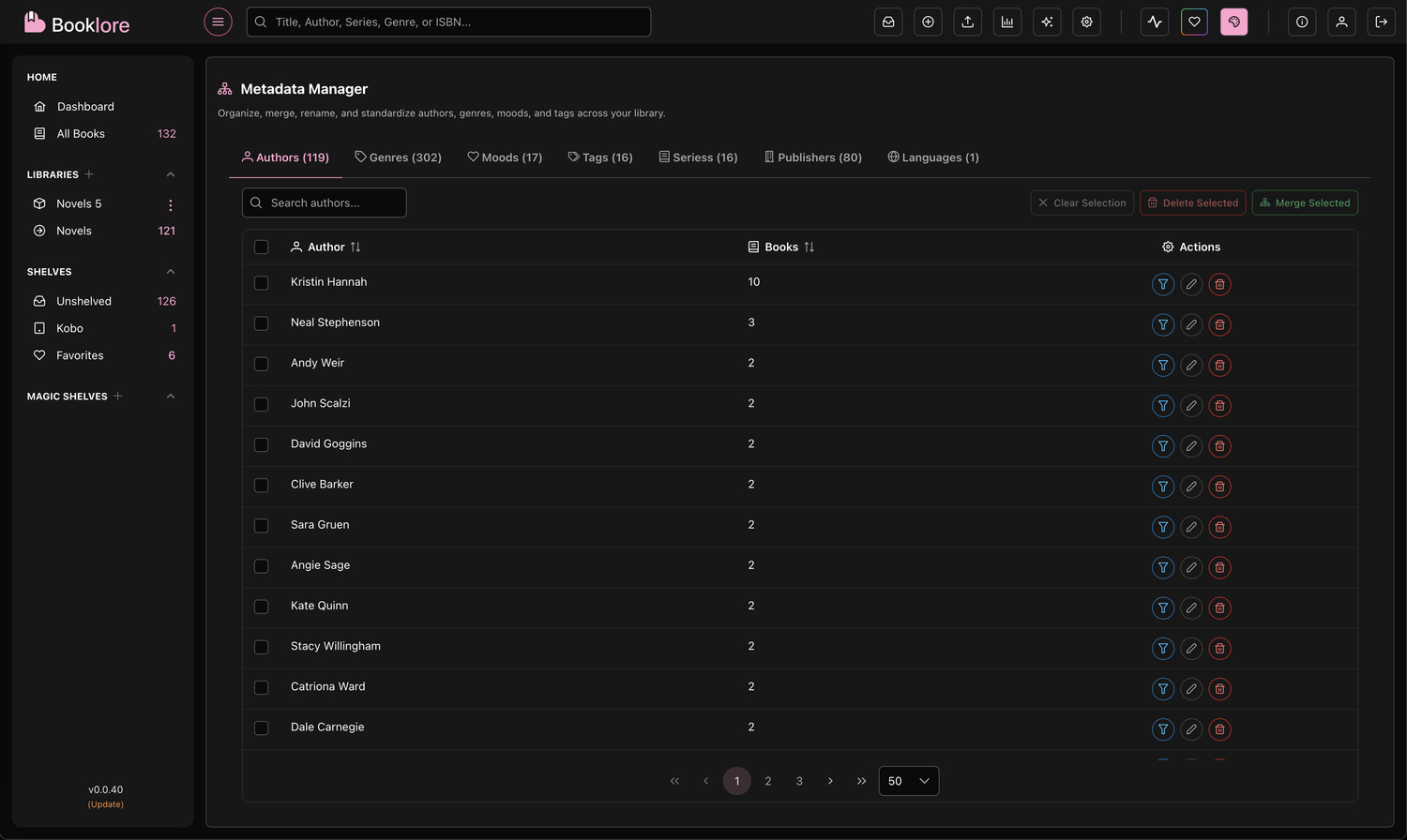
🏷️ Metadata Manager
Take complete control of your library's organization. Clean up inconsistencies, merge duplicates, and standardize metadata across your entire book collection with powerful bulk editing tools.
If you have enabled "Auto-Move Files on Metadata Update" and/or "Write to File", those settings will be honored when metadata changes are applied.
🌟 What You'll Achieve
With the Metadata Manager, you can:
- Standardize metadata across your entire library
- Merge duplicate entries (e.g., "Sci-Fi" and "Science Fiction")
- Rename or split metadata values in bulk
- Clean up inconsistencies from different sources
- View and filter all metadata with comprehensive statistics
Use the Metadata Manager regularly after adding new books to maintain a clean, organized library.
✨ Key Features & Capabilities
📊 Comprehensive Metadata Views
- 7 Metadata Categories: Manage Authors, Genres, Moods, Tags, Series, Publishers, and Languages
- Smart Statistics: See book counts for each metadata value
- Powerful Filtering: Search and filter across thousands of entries
- Sortable Tables: Sort by name or book count
🔄 Bulk Operations
- Merge Multiple Items: Combine duplicate or similar entries
- Rename Entries: Update metadata values across all books
- Split Values: Convert single entries into multiple tags
- Delete Unwanted Data: Remove metadata from books in bulk
📖 Understanding Metadata Types
Multi-Value Fields
These fields allow books to have multiple values:
- Authors 👤: Books can have multiple authors
- Genres 🏷️: Books can belong to multiple genres
- Moods ❤️: Books can have multiple mood tags
- Tags 🔖: Books can have unlimited custom tags
Example Operations:
- Merge "Sci-Fi" and "Science Fiction" into "Science Fiction, Sci-Fi" (both tags)
- Split "Mystery & Detective" into "Mystery, Detective" (two separate tags)
Single-Value Fields
These fields allow only one value per book:
- Series 📚: Each book belongs to one series (or none)
- Publisher 🏢: Each book has one publisher
- Language 🌐: Each book is in one language
Example Operations:
- Merge "En", "English", "en-US" into "English" (standardized)
- Rename "Penguin Books Inc." to "Penguin Books"
For single-value fields (Series, Publisher, Language), merge operations standardize all selected values to one target value.
🚀 Getting Started
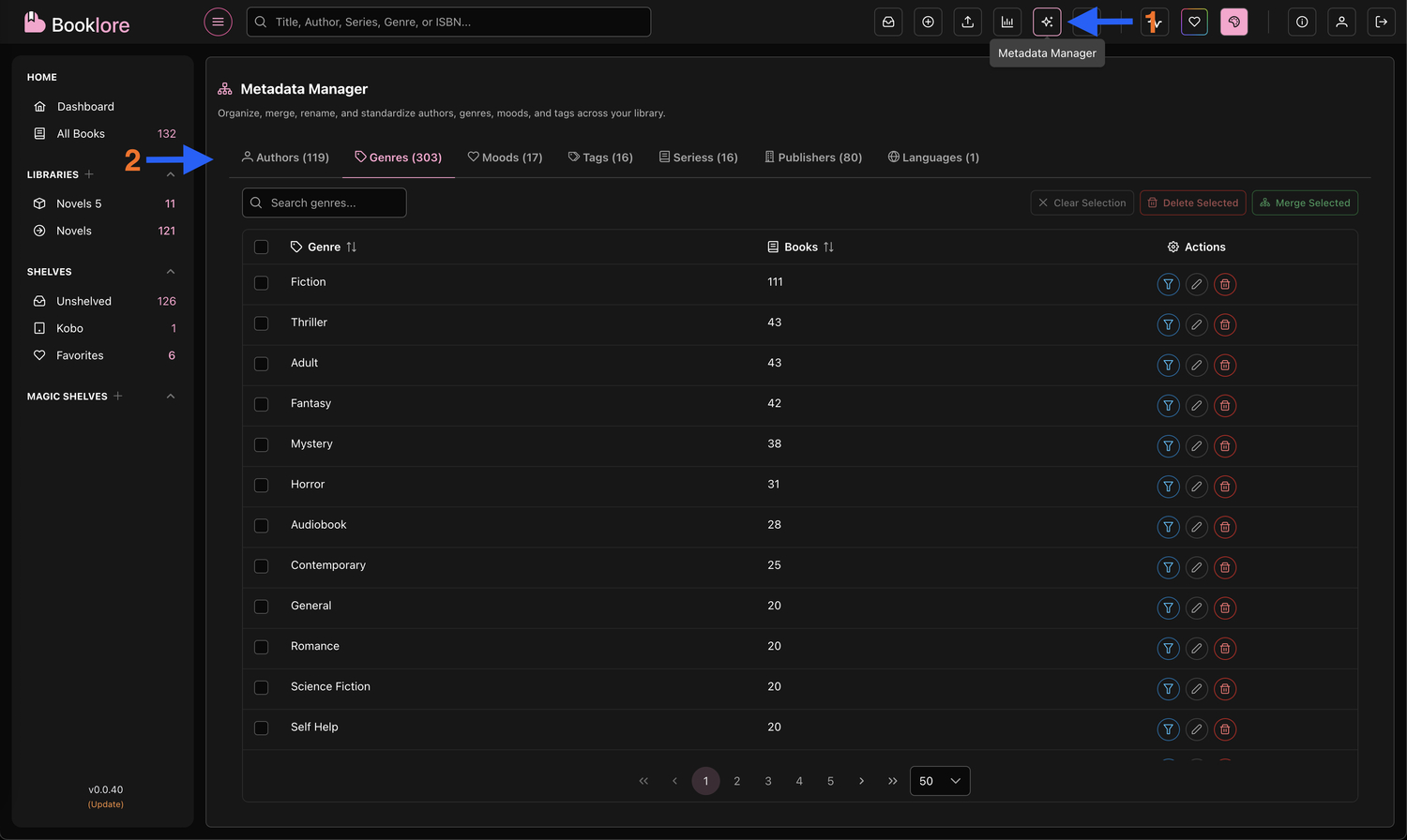
Accessing the Metadata Manager
-
Navigate to Settings:
- Click on Settings in the main navigation
- Select Metadata Manager from the settings menu
-
Choose a Category:
- Click on any tab to view that metadata type
- Each tab shows the count of unique values
-
Explore Your Data:
- Browse the table to see all metadata values
- Check the "Books" column to see how many books use each value
🔄 Merging Metadata
Combine duplicate or similar entries into standardized values.
When to Merge
Merge metadata when you have:
- Variations: "Sci-Fi" vs "Science Fiction" vs "SciFi"
- Typos: "Mistery" vs "Mystery"
- Different Formats: "J.K. Rowling" vs "Rowling, J.K."
- Multiple Languages: "English" vs "En" vs "en-US"
Steps to Merge
-
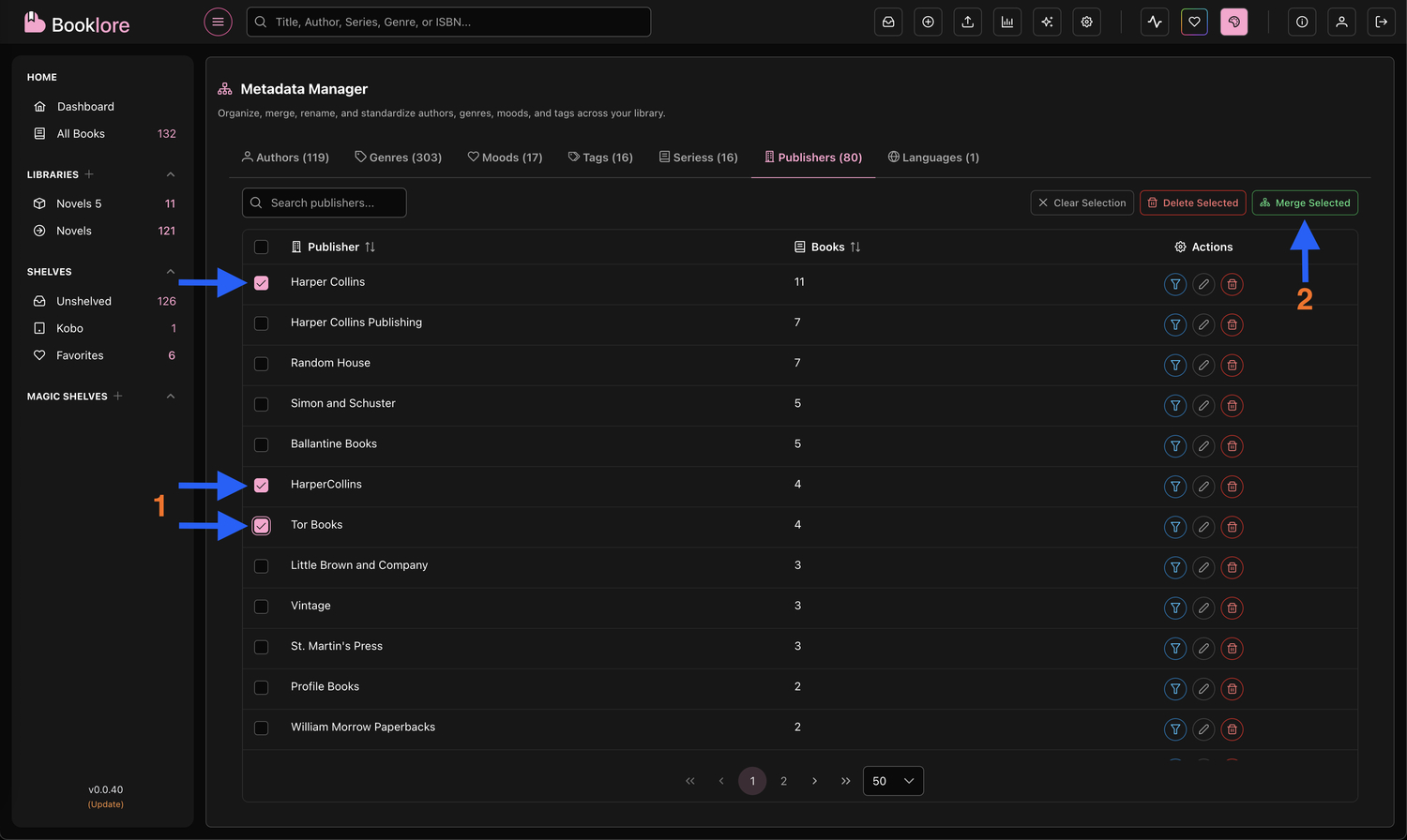
Select Items to Merge:
- Check the boxes next to items you want to merge
- Select at least 2 items
- Use "Select Similar" to find related entries
-
Click "Merge Selected":
- The merge dialog will open
- Review the items you've selected
- See the total books affected
-
Enter Target Value(s):
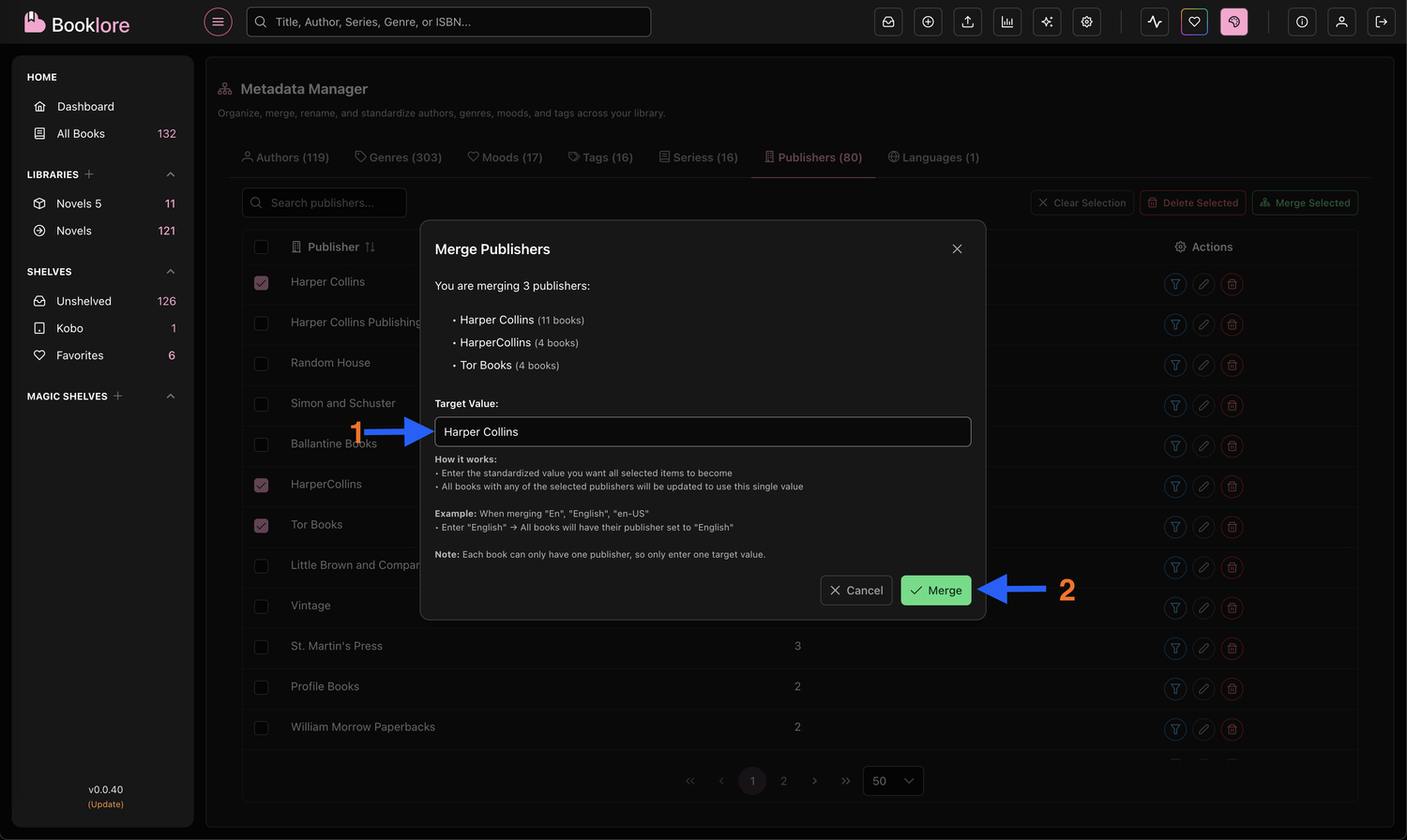
For Multi-Value Fields (Authors, Genres, Moods, Tags):
- Single value:
Science Fiction→ All books get one tag - Multiple values:
Science Fiction, Sci-Fi→ All books get both tags
For Single-Value Fields (Series, Publisher, Language):
- Single value only:
English→ Standardizes all to "English" - Multiple values not allowed
- Single value:
-
Confirm the Merge:
- Review the confirmation dialog
- Click "Merge" to proceed
- Changes apply immediately
Merge Examples
Example 1: Standardizing Genres (Multi-Value)
Selected: "Sci-Fi", "Science Fiction", "SciFi"
Target: "Science Fiction"
Result: All books get the tag "Science Fiction"
Example 2: Creating Multiple Tags (Multi-Value)
Selected: "Mystery & Detective", "Detective Fiction"
Target: "Mystery, Detective"
Result: All books get both "Mystery" and "Detective" tags
Example 3: Standardizing Language (Single-Value)
Selected: "En", "English", "en-US"
Target: "English"
Result: All books have their language set to "English"
✏️ Renaming Metadata
Rename individual entries or split them into multiple values.
When to Rename
Use rename when you need to:
- Fix Typos: "Mistery" → "Mystery"
- Update Formatting: "rowling, j.k." → "J.K. Rowling"
- Split Combined Values: "Mystery & Detective" → "Mystery, Detective"
- Standardize Naming: "Penguin Books Inc." → "Penguin Books"
Steps to Rename
-
Find the Item:
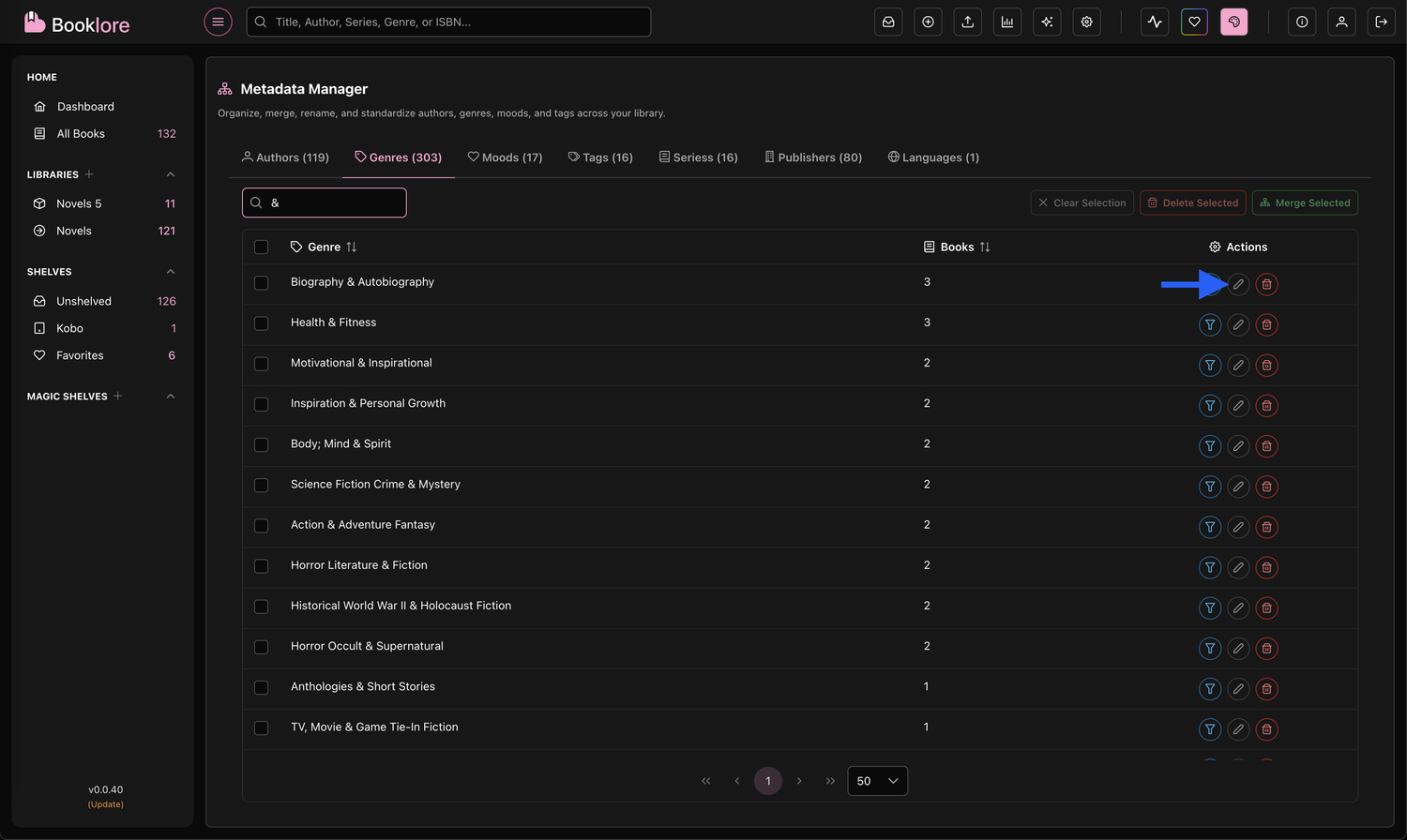
- Browse or search for the metadata entry
- Click the pencil icon (Rename button)
-
Enter New Name(s):
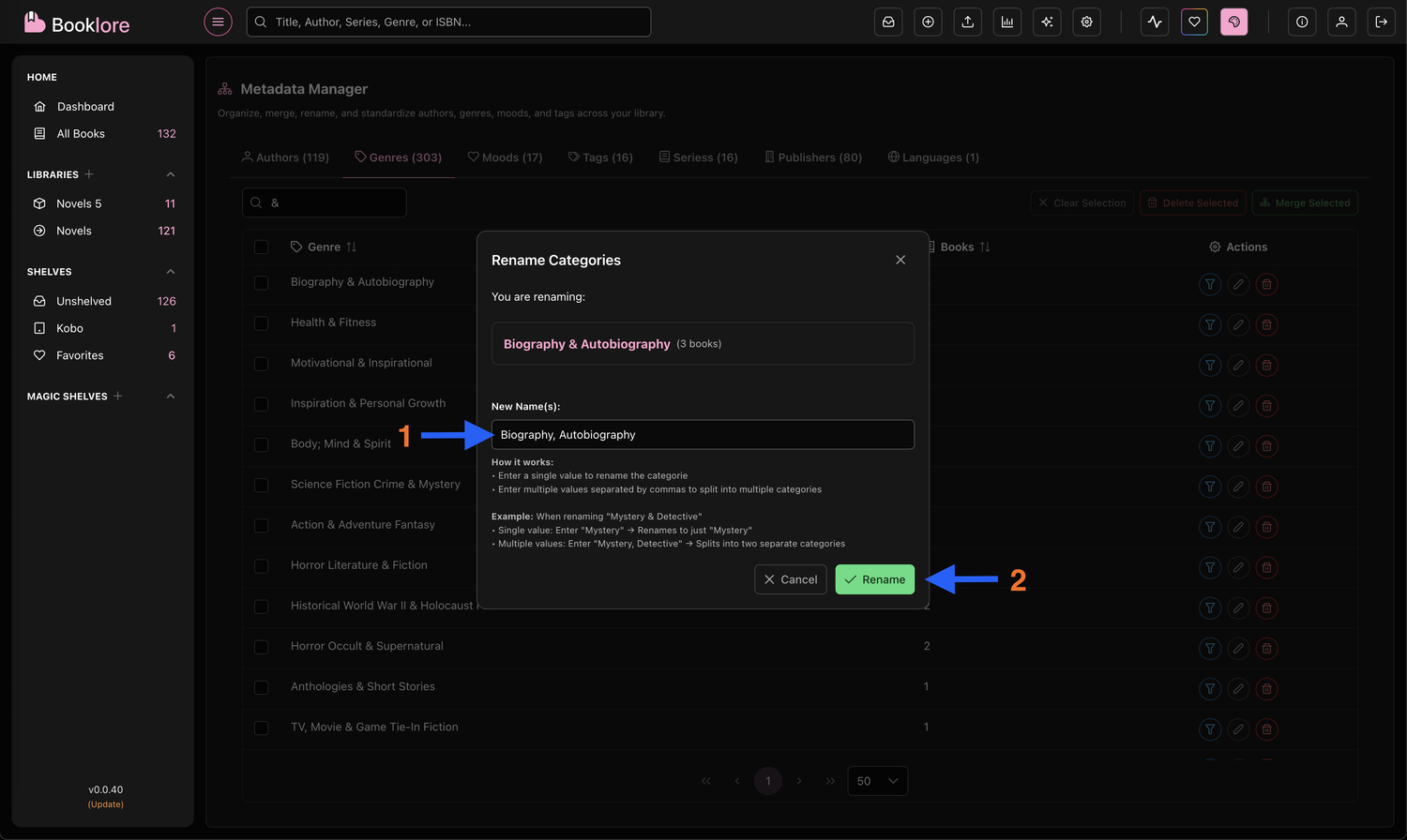
For Multi-Value Fields:
- Single name: Renames the entry
- Multiple names (comma-separated): Splits into multiple entries
For Single-Value Fields:
- Single name only: Renames the entry
- Multiple names not allowed
-
Confirm the Change:
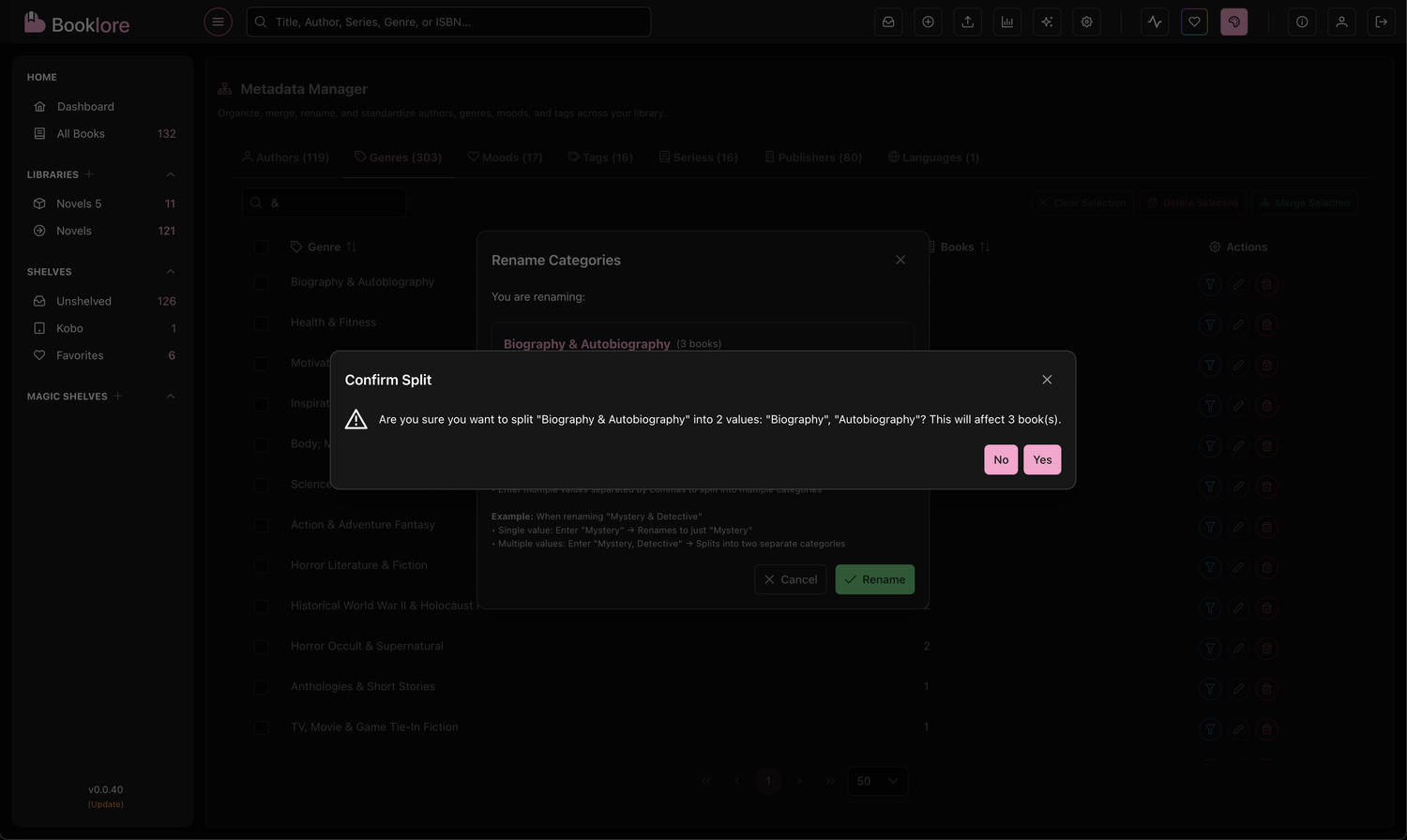
- Review the number of affected books
- Click "Rename" to proceed
Rename Examples
Example 1: Simple Rename (Any Field)
Current: "J.K. Rowling"
New: "Rowling, J.K."
Result: All books updated to new format
Example 2: Splitting Tags (Multi-Value)
Current: "Mystery & Detective"
New: "Mystery, Detective"
Result: All books now have both "Mystery" and "Detective" tags
Example 3: Fixing Publisher (Single-Value)
Current: "Penguin Books Inc."
New: "Penguin Books"
Result: All books have standardized publisher name
🗑️ Deleting Metadata
Remove unwanted metadata from your library.
When to Delete
Delete metadata when:
- Removing Incorrect Data: Wrong author name added by mistake
- Cleaning Up: Removing auto-generated tags you don't want
- Simplifying: Reducing overly complex categorization
- Fixing Imports: Removing unwanted metadata from bulk imports
Steps to Delete
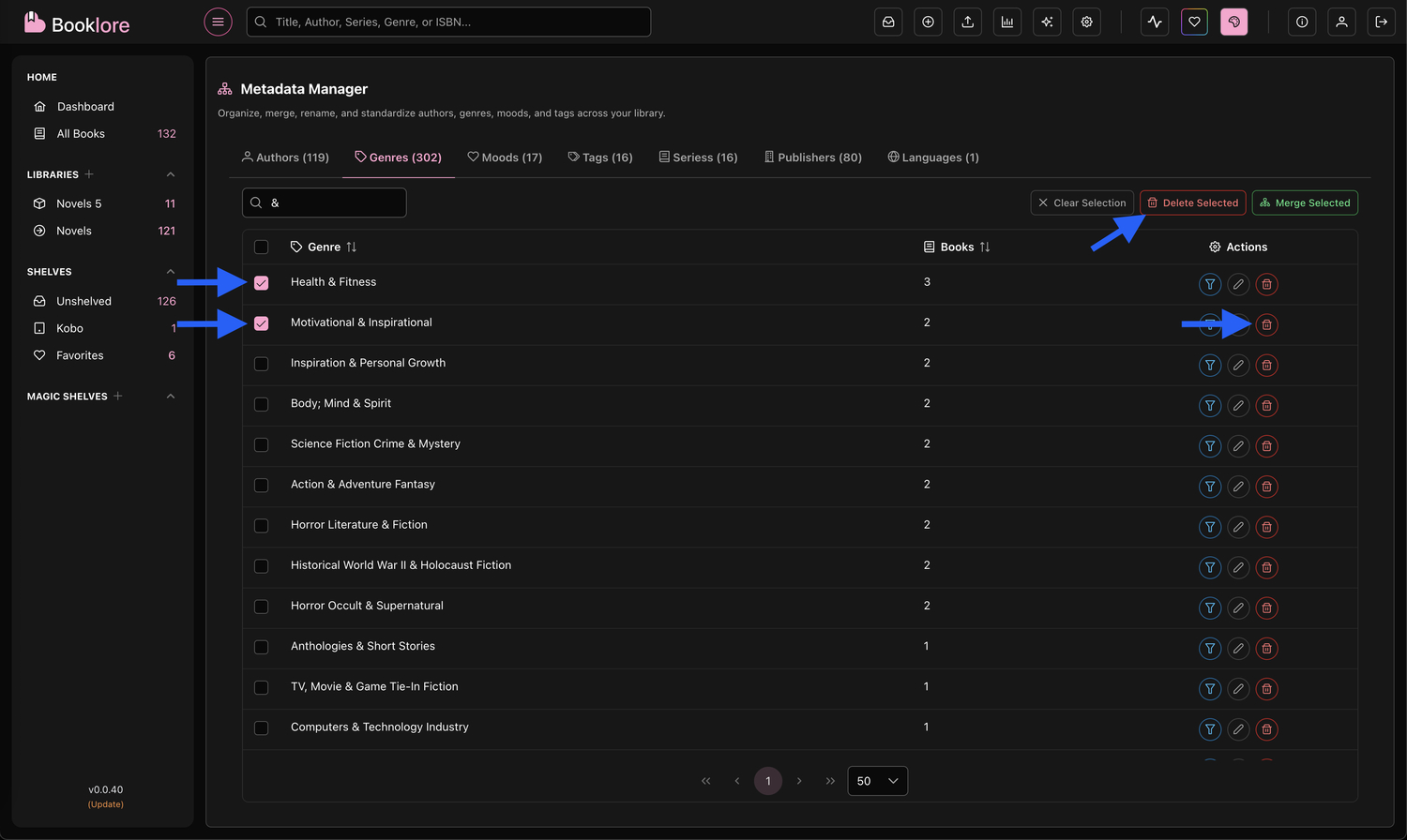
Option 1: Delete Single Item
-
Find the Item:
- Browse or search for the entry
- Click the trash icon (Delete button)
-
Review Warning:
- See how many books will be affected
- Understand what will be removed
- Note that this action cannot be undone
-
Confirm Deletion:
- Click "Delete" to proceed
- The metadata is removed from all books
Option 2: Delete Multiple Items
-
Select Items:
- Check boxes next to items to delete
- Select one or more entries
-
Click "Delete Selected":
- Review all selected items
- See total books affected
-
Confirm Deletion:
- Verify the list is correct
- Click "Delete" to proceed
What Happens When You Delete
- ✅ Metadata is removed from all affected books
- ✅ Books remain in your library
- ✅ Other metadata on books is unchanged
This action cannot be undone. Make sure you're deleting the correct metadata.
🎯 Using Smart Selection Tools
Speed up your workflow with powerful selection features.
Select Similar
Find and select entries with similar names automatically.
- Click "Select Similar" button (filter icon) on any item
- Automatic Selection:
- Finds entries containing the same words
- Selects variations and similar entries
- Useful for finding duplicates
Click "Select Similar" on any item to automatically find and select variations and similar entries.
💡 Best Practices
Maintaining a Clean Library
-
Regular Reviews
- Check Metadata Manager monthly
- Look for duplicate entries
- Standardize naming conventions
-
Before Bulk Imports
- Preview metadata in sample files
- Plan standardization strategy
- Document your conventions
-
After Adding Books
- Review new metadata entries
- Merge with existing standards
- Clean up automatic imports
Check Metadata Manager monthly to catch duplicates early and maintain consistent standards.
Naming Conventions
Authors:
- ✅ Use consistent format: "First Last" or "Last, First"
- ✅ Include full names when known
- ❌ Avoid abbreviations unless standard
Genres:
- ✅ Use specific, descriptive terms
- ✅ Prefer established genre names
- ❌ Avoid overly broad categories
Tags:
- ✅ Use lowercase for consistency
- ✅ Keep tags focused and specific
- ❌ Avoid redundant tags
Series:
- ✅ Use official series names
- ✅ Be consistent with formatting
- ❌ Don't include book numbers in series name
Publishers:
- ✅ Use official publisher names
- ✅ Standardize imprint vs parent company
- ❌ Avoid including "Inc.", "Ltd." unless necessary
Languages:
- ✅ Use full language names
- ✅ Prefer English names for consistency
- ❌ Avoid ISO codes unless preferred
Workflow Tips
- Start with High-Count Items
- Sort by "Books" column
- Focus on entries affecting many books
- Maximum impact for your effort
Start with high-count items by sorting the "Books" column. Focus on entries affecting many books for maximum impact.
-
Use Search Effectively
- Search for common variations
- Look for special characters
- Find entries with numbers or typos
-
Test with Small Selections
- Try operations on 1-2 items first
- Verify results before bulk operations
- Build confidence with the tools
-
Click to Verify
- Click metadata values to see affected books
- Review books before merging/deleting
- Ensure you're targeting the right items
⚠️ Important Notes
Data Safety
Merge, rename, and delete operations cannot be undone. Always read confirmation dialogs carefully and consider backing up your database before major changes.
Try operations on a few items before bulk actions to build confidence with the tools.
Performance Considerations
- Large Libraries: Operations on thousands of books may take a few seconds
- Filtered Tables: Selection works on filtered results
- Real-time Updates: Changes apply immediately across the application
Limitations
- Metadata is case-sensitive ("fiction" ≠ "Fiction")
- Leading/trailing spaces matter ("Author" ≠ "Author ")
- Single vs Multi-Value fields have different merge behaviors
🔧 Common Tasks
Task 1: Standardize All Genres
Goal: Ensure consistent genre naming across your library
- Go to the Genres tab
- Sort by book count (highest first)
- Look for duplicate/similar entries
- Select variations (e.g., "Sci-Fi", "Science Fiction", "SciFi")
- Merge into your preferred standard ("Science Fiction")
- Repeat for other genre variations
Task 2: Clean Up Auto-Generated Tags
Goal: Remove unwanted tags from bulk imports
- Go to the Tags tab
- Search for common auto-tag patterns
- Select unwanted tags (e.g., "unread", "to-read")
- Click "Delete Selected"
- Confirm deletion
Task 3: Fix Author Name Formatting
Goal: Standardize how author names appear
- Go to the Authors tab
- Find authors with inconsistent formatting
- Rename each to your preferred format
- Consider: "FirstName LastName" or "LastName, FirstName"
- Be consistent across all authors
Task 4: Merge Publisher Variations
Goal: Consolidate different publisher name formats
- Go to the Publishers tab
- Look for variations (e.g., "Penguin", "Penguin Books", "Penguin Publishing")
- Click "Select Similar" on the main entry
- Review selected items
- Merge all into the official publisher name
Task 5: Standardize Languages
Goal: Use consistent language names
- Go to the Languages tab
- Find variations (e.g., "en", "English", "en-US")
- Select all variations
- Merge into your preferred format ("English")
- Repeat for other languages
🆘 Troubleshooting
"Merge Selected" Button is Disabled
Cause: You need at least 2 items selected
Solution: Select more items by checking their boxes
Changes Don't Appear Immediately
Cause: Browser cache or table not refreshed
Solution:
- Wait a moment for the table to reload
- Refresh the page if needed
- Check the All Books view to verify changes
Can't Find a Specific Entry
Cause: Searching with wrong case or spelling
Solution:
- Try different search terms
- Sort the table alphabetically
- Check for special characters or extra spaces
Metadata is case-sensitive. Try searching with different capitalization if you can't find an entry.
Accidentally Deleted Metadata
Cause: No undo feature available
Solution:
- Re-add metadata manually to affected books
- Restore from backup if available
- Use book edit feature to add back metadata
Always verify the list of affected books before confirming deletion operations.
Merge Created Too Many Tags
Cause: Used commas when single value intended
Solution:
- Select the unwanted tags
- Delete them
- Re-merge with correct target value
The Metadata Manager is a powerful tool for maintaining a clean, organized library. Take your time, verify your changes, and enjoy a perfectly categorized book collection! 📚✨